> For the complete documentation index, see [llms.txt](https://doc.lockerprotocol.com/llms.txt). Markdown versions of documentation pages are available by appending `.md` to page URLs; this page is available as [Markdown](https://doc.lockerprotocol.com/vault/sync-with-the-extension.md).

# Sync with the browser extension

Show the sync QR so the extension can watch your addresses. No key leaves the Vault.

To let the browser extension *watch* your account, the Vault shows a QR that contains your **public addresses**. The extension scans it once. Apart from signing requests, that is the only thing the two apps ever exchange.

## What you need

* The Vault, unlocked, with a recovery phrase account.
* A computer with Chrome or Brave and a working webcam. The extension can be installed later: the sync page explains where to find it.

{% stepper %}
{% step %}

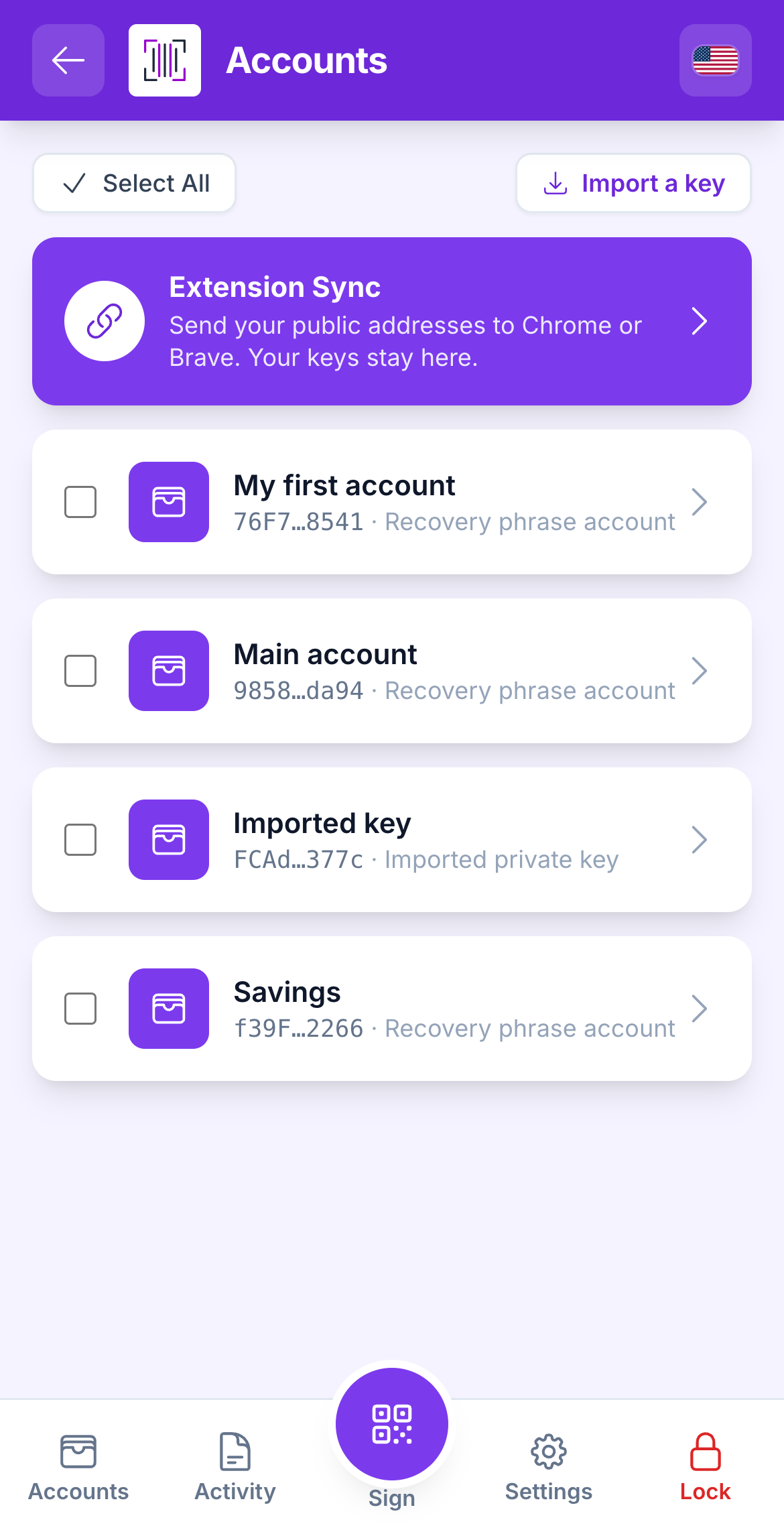
### Tap the violet "Extension Sync" card

The card sits on the **Accounts** screen, above the account cards, as soon as a recovery phrase account exists. It reads *Send your public addresses to Chrome or Brave. Your keys stay here.*

The same card is on every **account page**, right under the account header. From there the picker is skipped: that account's QR is built straight away.

<figure><img src="https://3674012151-files.gitbook.io/~/files/v0/b/gitbook-x-prod.appspot.com/o/spaces%2FT2jyfPJ4rcVavAvTU9nL%2Fuploads%2Fgit-blob-c182d3bd0483c6832ad7917b130d4e24001a8049%2F01-home-extension-sync.png?alt=media" alt="home extension sync"><figcaption><p>The Extension Sync card on the Accounts screen.</p></figcaption></figure>
{% endstep %}

{% step %}

### Read "Where is the extension in Chrome or Brave?"

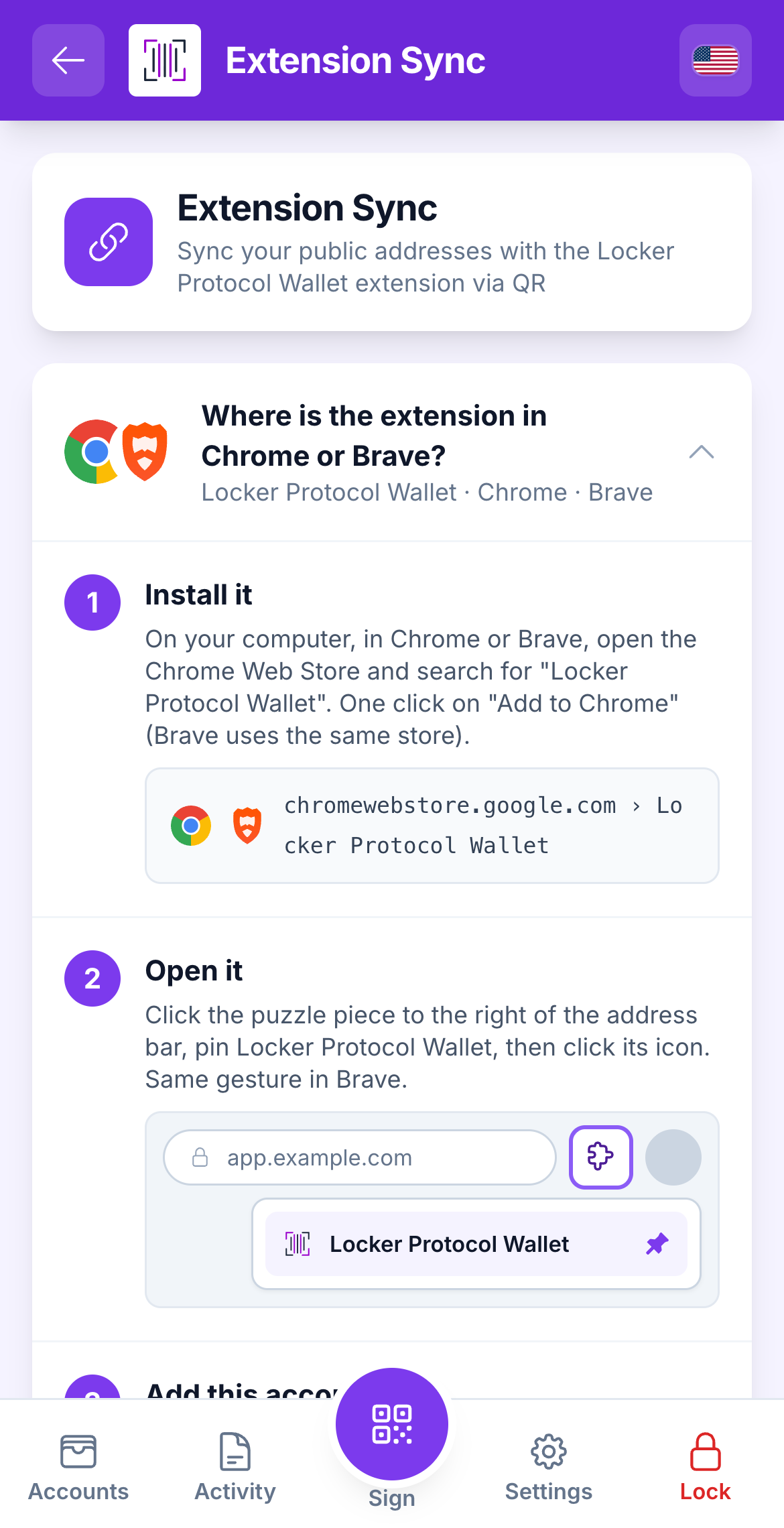
The sync page opens on an illustrated guide with three steps:

1. **Install it.** *On your computer, in Chrome or Brave, open the Chrome Web Store and search for "Locker Protocol Wallet". One click on "Add to Chrome" (Brave uses the same store).*
2. **Open it.** *Click the puzzle piece to the right of the address bar, pin Locker Protocol Wallet, then click its icon.* A small mock of the address bar shows the puzzle piece and the pin.
3. **Add this account.** *In the extension, choose "Add an account from your vault", then point the computer's camera at the QR shown here. Your public addresses arrive, your keys stay.*

The guide folds itself after your first successful sync. Tap its title to open it again.

<figure><img src="https://3674012151-files.gitbook.io/~/files/v0/b/gitbook-x-prod.appspot.com/o/spaces%2FT2jyfPJ4rcVavAvTU9nL%2Fuploads%2Fgit-blob-701dc0fce877f4e7f57e8e625cf4a2e2e4155dd9%2F04-how-to.png?alt=media" alt="how to"><figcaption><p>The guide, then the account picker below it.</p></figcaption></figure>
{% endstep %}

{% step %}

### Pick the account and tap "Show the sync QR"

Under **Select HD Account**, tap the account, then **Show the sync QR**. Enter your master password if the Vault asks: it needs it once to derive the public addresses.
{% endstep %}

{% step %}

### Hold the QR in front of the webcam

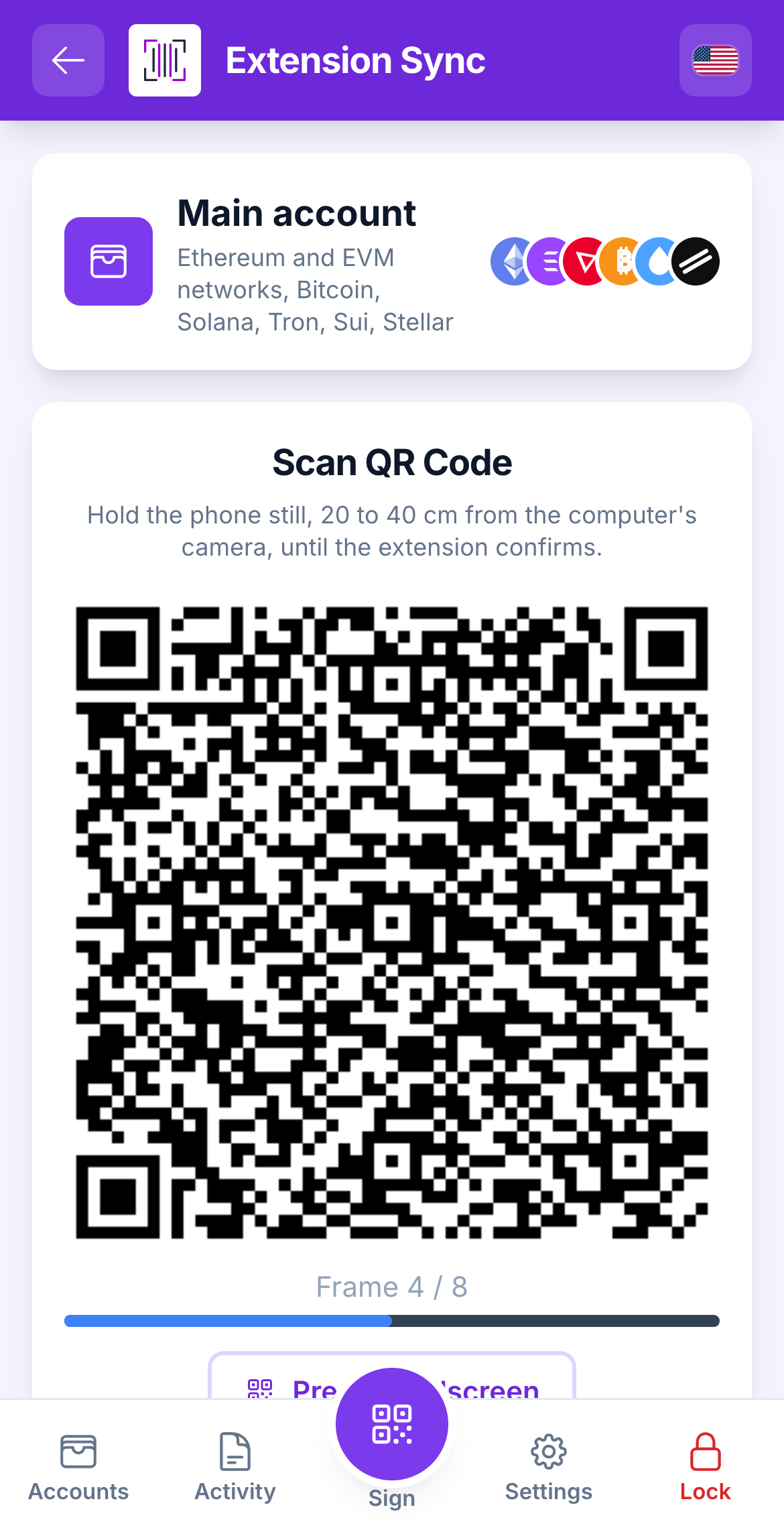
The QR screen shows the account on top, with the six chain logos and the line *Ethereum and EVM networks, Bitcoin, Solana, Tron, Sui, Stellar*. Then the code itself: *Hold the phone still, 20 to 40 cm from the computer's camera, until the extension confirms.* The code animates (**Frame 4 / 8**); keep the camera on it until every frame is read. **Present fullscreen** makes it bigger.

<figure><img src="https://3674012151-files.gitbook.io/~/files/v0/b/gitbook-x-prod.appspot.com/o/spaces%2FT2jyfPJ4rcVavAvTU9nL%2Fuploads%2Fgit-blob-6abb18667a318da6dfe167079161a1f592b40f2d%2F02-sync-qr.png?alt=media" alt="sync qr"><figcaption><p>The sync QR, with the account it describes on top.</p></figcaption></figure>
{% endstep %}

{% step %}

### Check "What the extension will receive"

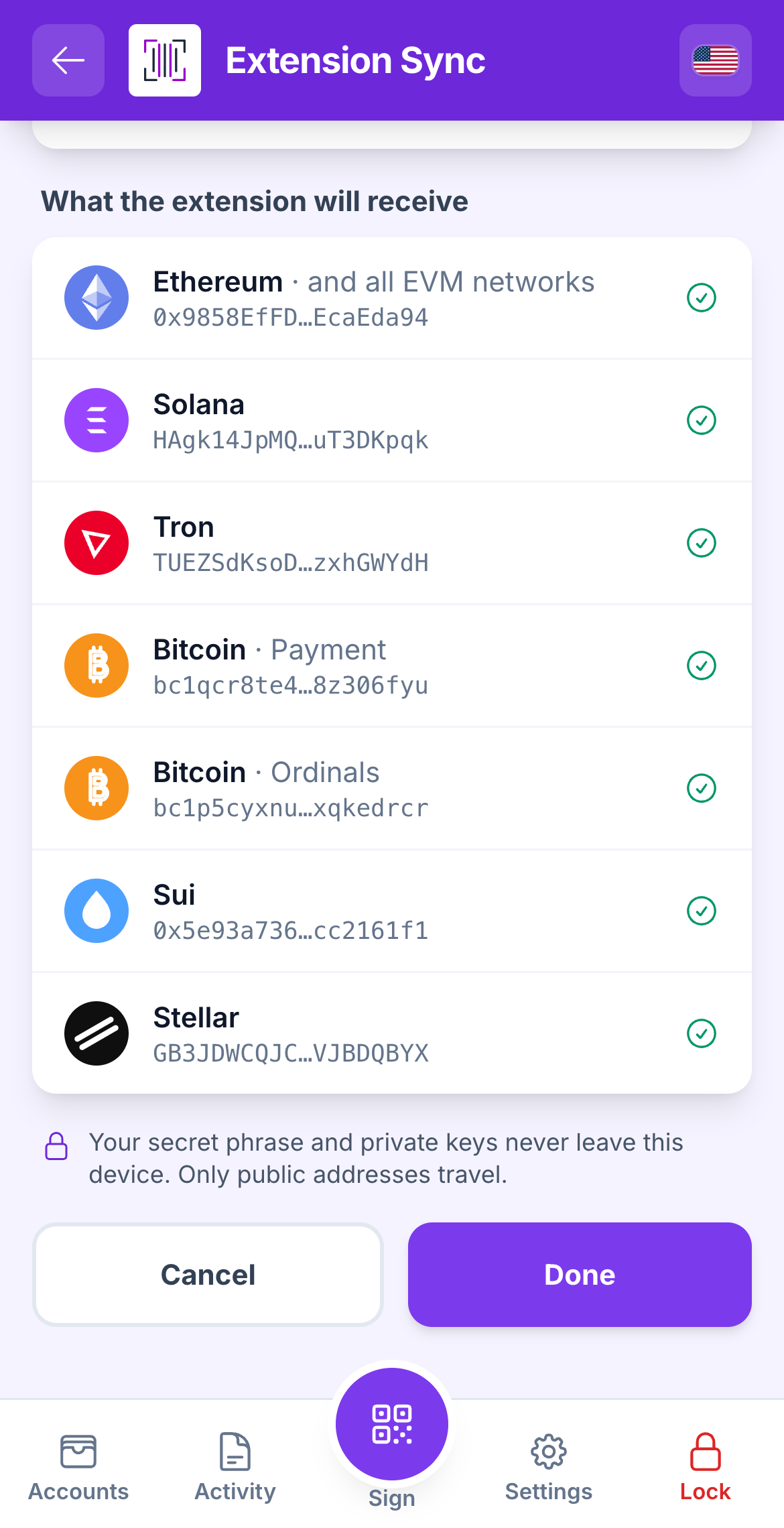
Below the code, one row per chain family with its logo and the exact address the extension is about to get: Ethereum *and all EVM networks*, Solana, Tron, Bitcoin *Payment*, Bitcoin *Ordinals*, Sui, Stellar. The note under the list is the rule of the whole product: *Your secret phrase and private keys never leave this device. Only public addresses travel.*

<figure><img src="https://3674012151-files.gitbook.io/~/files/v0/b/gitbook-x-prod.appspot.com/o/spaces%2FT2jyfPJ4rcVavAvTU9nL%2Fuploads%2Fgit-blob-55ed518a3fd248017f6e78768fcece55b1f2efa0%2F05-what-it-receives.png?alt=media" alt="what it receives"><figcaption><p>The addresses the QR carries, one per family.</p></figcaption></figure>
{% endstep %}

{% step %}

### Scan it with the extension

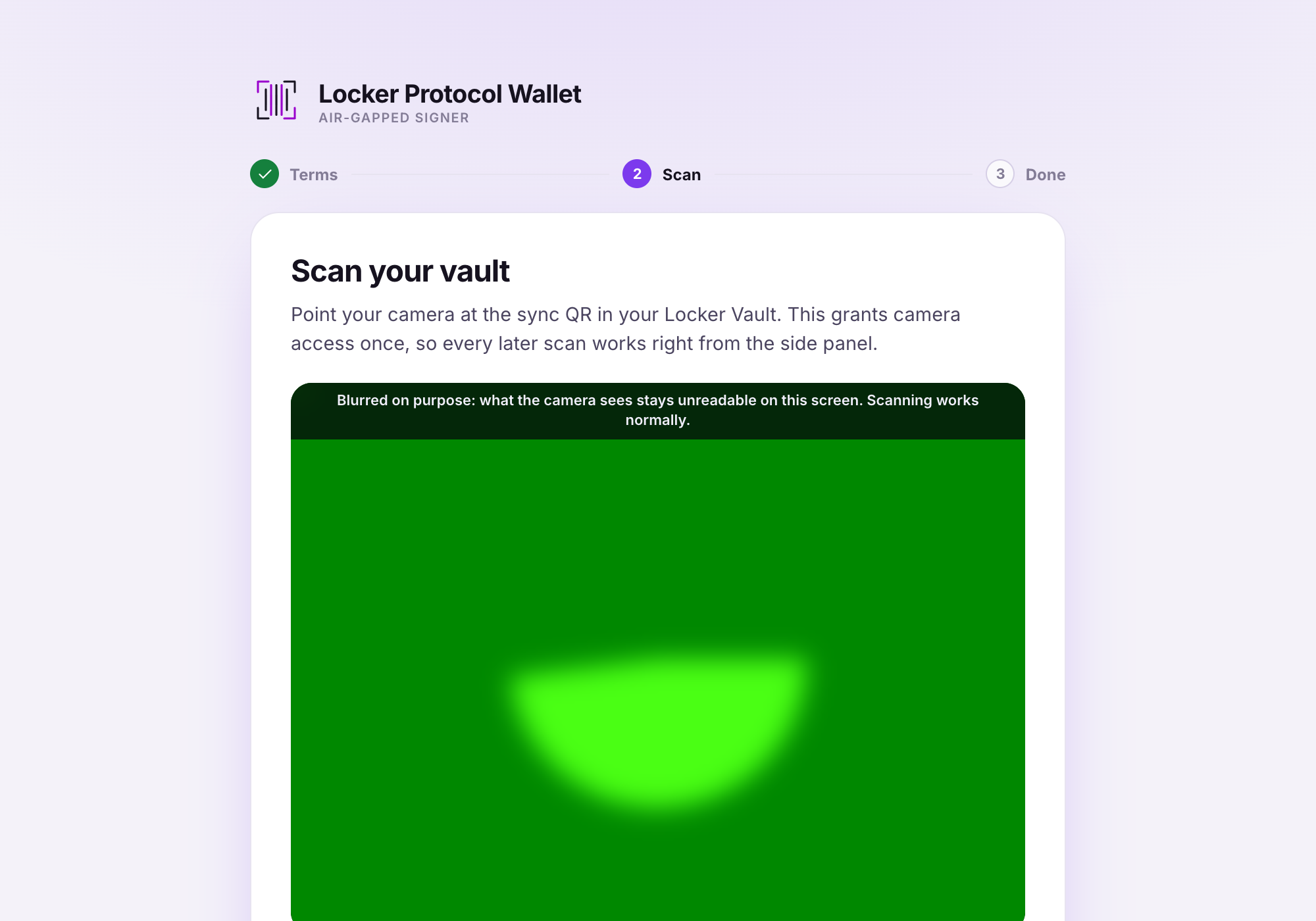
On the computer, hold the Vault up to the webcam until the extension shows your account. Tap **Done** on the Vault.

<figure><img src="https://3674012151-files.gitbook.io/~/files/v0/b/gitbook-x-prod.appspot.com/o/spaces%2FT2jyfPJ4rcVavAvTU9nL%2Fuploads%2Fgit-blob-fe3093835de1356a15de01ea53aac11e7fa15f71%2F03-extension-scanning.png?alt=media" alt="extension scanning"><figcaption><p>The extension reading the Vault's sync QR.</p></figcaption></figure>
{% endstep %}
{% endstepper %}

{% hint style="info" %}
**What you see when it worked:** the extension shows the account with the same addresses as the Vault's *What the extension will receive* list, marked **watch-only** because the extension has no key for it.
{% endhint %}

{% hint style="warning" %}
**If something goes wrong**

* *Private key accounts not shown - requires an HD account:* only a recovery phrase account can be synced. Create or import one.
* *The extension does not react:* make sure the whole QR is in the webcam's view, and that the extension has camera permission ([Camera permission](/browser-extension/camera-permission.md)).
* *The extension says "This crypto-account is the Bitcoin watch-only export (meant for Sparrow/Nunchuk), not an EVM account":* you showed it the **Bitcoin watch-only** QR meant for Sparrow or Nunchuk. Go back to the account page and use **Extension Sync** instead.
* *You added a chain later:* open Extension Sync again and scan again. In the extension, use **Re-sync** on the account.
  {% endhint %}

{% hint style="info" %}
**One format, one wallet.** The Vault emits a single payload, `crypto-multi-accounts`, carrying every chain of the account. There is no MetaMask mode: the extension is the only thing that reads this QR.
{% endhint %}

## Learn more

* [Accounts in the extension](/browser-extension/accounts.md)
* [QR formats](/reference/qr-formats.md)


---

# Agent Instructions
This documentation is published with GitBook. GitBook is the documentation platform designed so that both humans and AI agents can read, navigate, and reason over technical content effectively. Learn more at gitbook.com.

## Querying This Documentation
If you need additional information that is not directly available in this page, you can query the documentation dynamically by asking a question.

Perform an HTTP GET request on the current page URL with the `ask` query parameter, and the optional `goal` query parameter:

```
GET https://doc.lockerprotocol.com/vault/sync-with-the-extension.md?ask=<question>&goal=<endgoal>
```

`ask` is the immediate question: it should be specific, self-contained, and written in natural language.
`goal` is optional and describes the broader end goal you are ultimately trying to accomplish on behalf of the user. GitBook uses it to tailor the answer towards what is most useful for that goal.

The response will contain a direct answer to the question and relevant excerpts and sources from the documentation.

Use this mechanism when the answer is not explicitly present in the current page, you need clarification or additional context, or you want to retrieve related documentation sections.