> For the complete documentation index, see [llms.txt](https://doc.lockerprotocol.com/llms.txt). Markdown versions of documentation pages are available by appending `.md` to page URLs; this page is available as [Markdown](https://doc.lockerprotocol.com/vault/sign-a-transaction.md).

# Sign a transaction (the QR loop)

Scan the request, read the review screen, then show the signed QR.

This is the Vault's main job. The extension (or a website through it) shows a request as a QR code; the Vault reads it, shows you what it really says, and, only if you agree, signs it and hands the signature back as a QR.

## What you need

* The Vault, unlocked.
* The request QR on the other screen (from the extension's **Send**, **Swap**, a dApp, …).

{% stepper %}
{% step %}

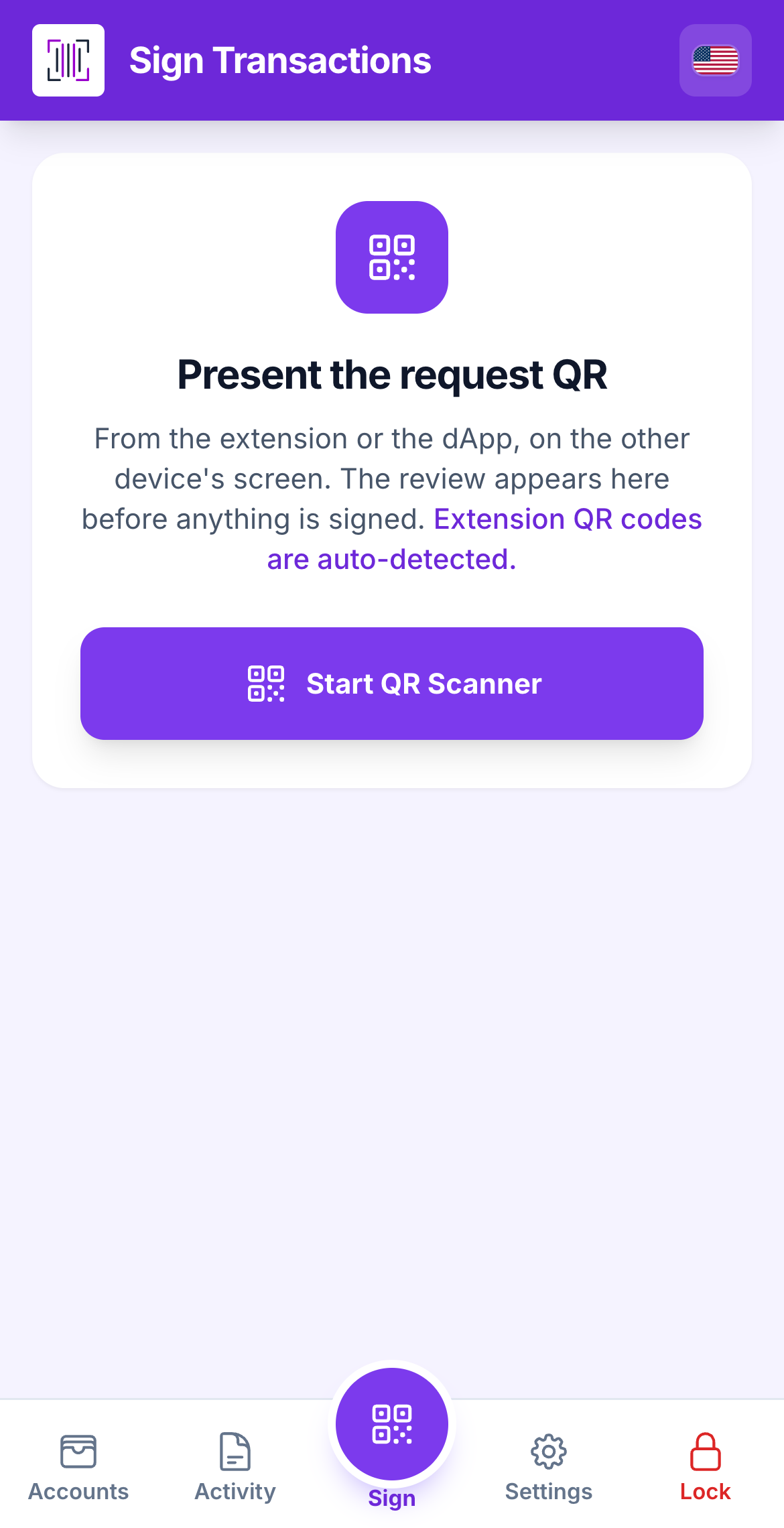
### Tap Sign: the camera opens

Tap the round **Sign** button in the middle of the bottom bar. The camera starts at once; there is no other button to find. Closing the camera leaves you on the Sign screen, which says **Present the request QR**: *from the extension or the dApp, on the other device's screen*, with a **Start QR Scanner** button to open it again.

<figure><img src="https://3674012151-files.gitbook.io/~/files/v0/b/gitbook-x-prod.appspot.com/o/spaces%2FT2jyfPJ4rcVavAvTU9nL%2Fuploads%2Fgit-blob-ba9844651aebbb6f5aa3481d53838e74a1ce8564%2F01-sign-tab.png?alt=media" alt="sign tab"><figcaption><p>The Sign screen, waiting for a request.</p></figcaption></figure>
{% endstep %}

{% step %}

### Scan the animated QR

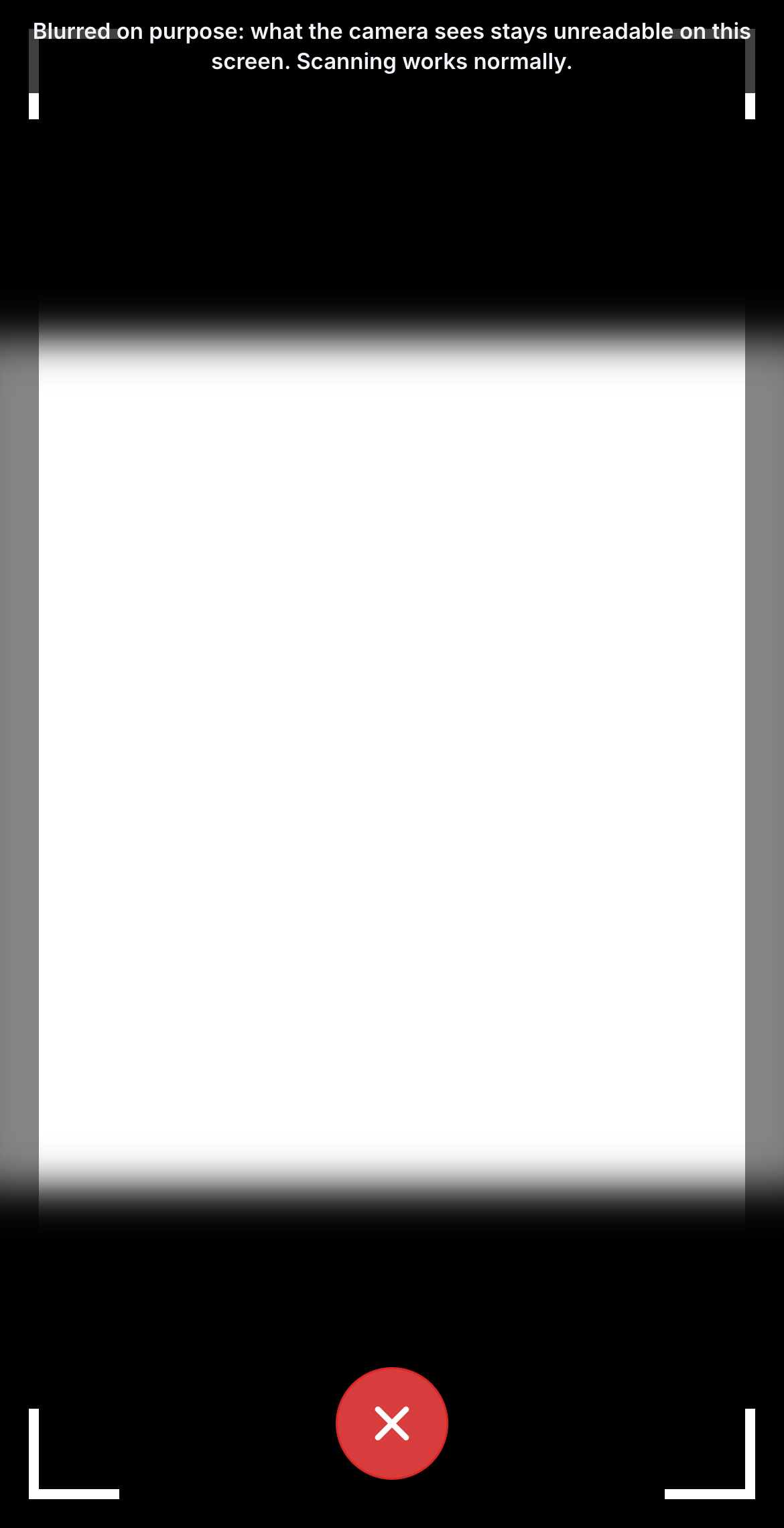
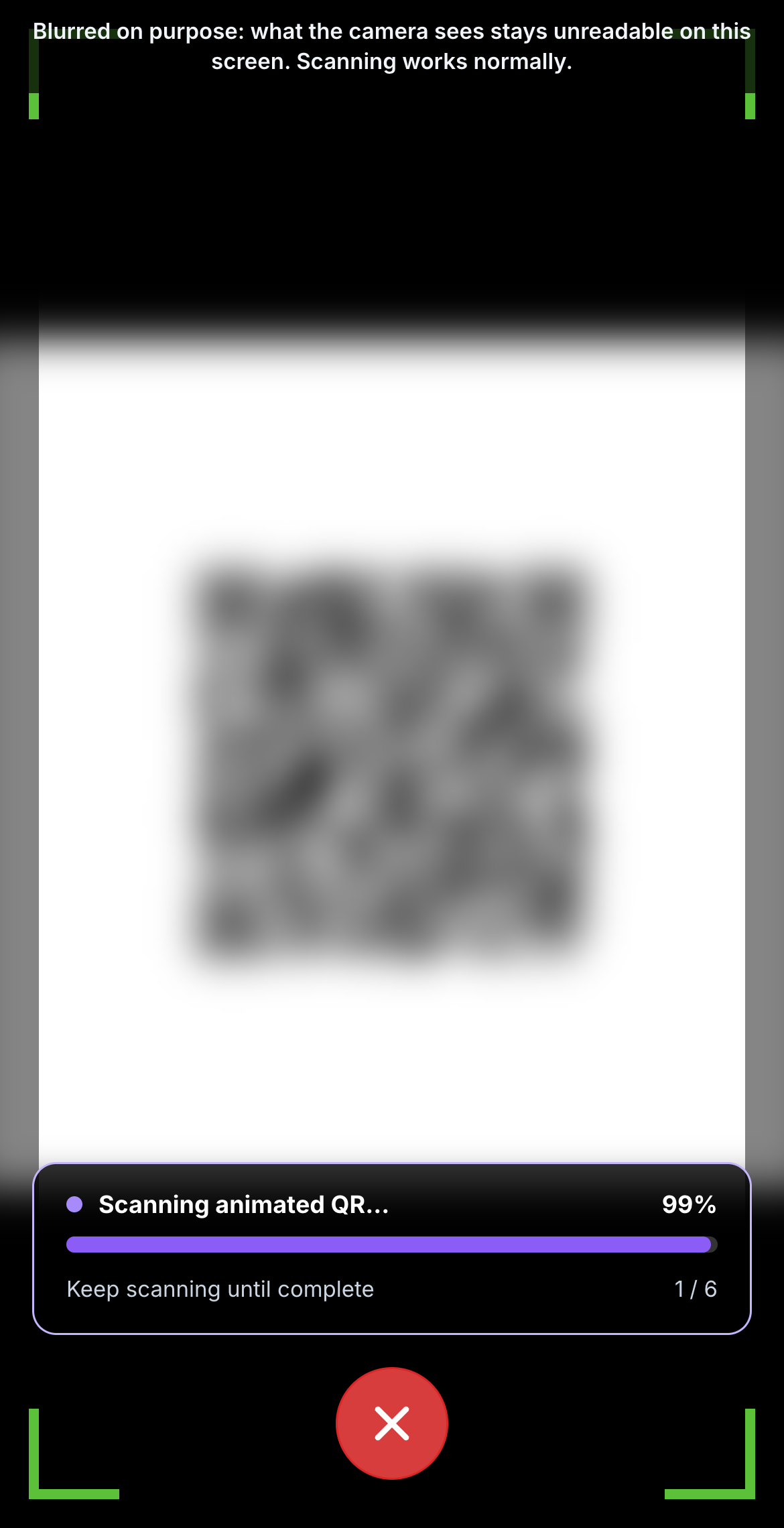
Point the camera at the computer screen. The preview is **blurred on purpose** (so nobody can read the code off the Vault's screen); scanning works normally.

<figure><img src="https://3674012151-files.gitbook.io/~/files/v0/b/gitbook-x-prod.appspot.com/o/spaces%2FT2jyfPJ4rcVavAvTU9nL%2Fuploads%2Fgit-blob-fdf95bb044ce7d431ffe5ba94de0052b858948fd%2F02-vault-scans.png?alt=media" alt="scan request"><figcaption><p>Scanning the extension's request.</p></figcaption></figure>
{% endstep %}

{% step %}

### Keep scanning until complete

Big requests are split into several frames. The Vault shows **Scanning animated QR… Keep scanning until complete** with a progress count. Hold still until it says **QR code fully scanned**.

<figure><img src="https://3674012151-files.gitbook.io/~/files/v0/b/gitbook-x-prod.appspot.com/o/spaces%2FT2jyfPJ4rcVavAvTU9nL%2Fuploads%2Fgit-blob-0f0bd4959307c31c97bb518357412267faec7908%2F03-scanning-progress.png?alt=media" alt="scanning progress"><figcaption><p>Progress while the frames are collected.</p></figcaption></figure>
{% endstep %}

{% step %}

### Read the review screen

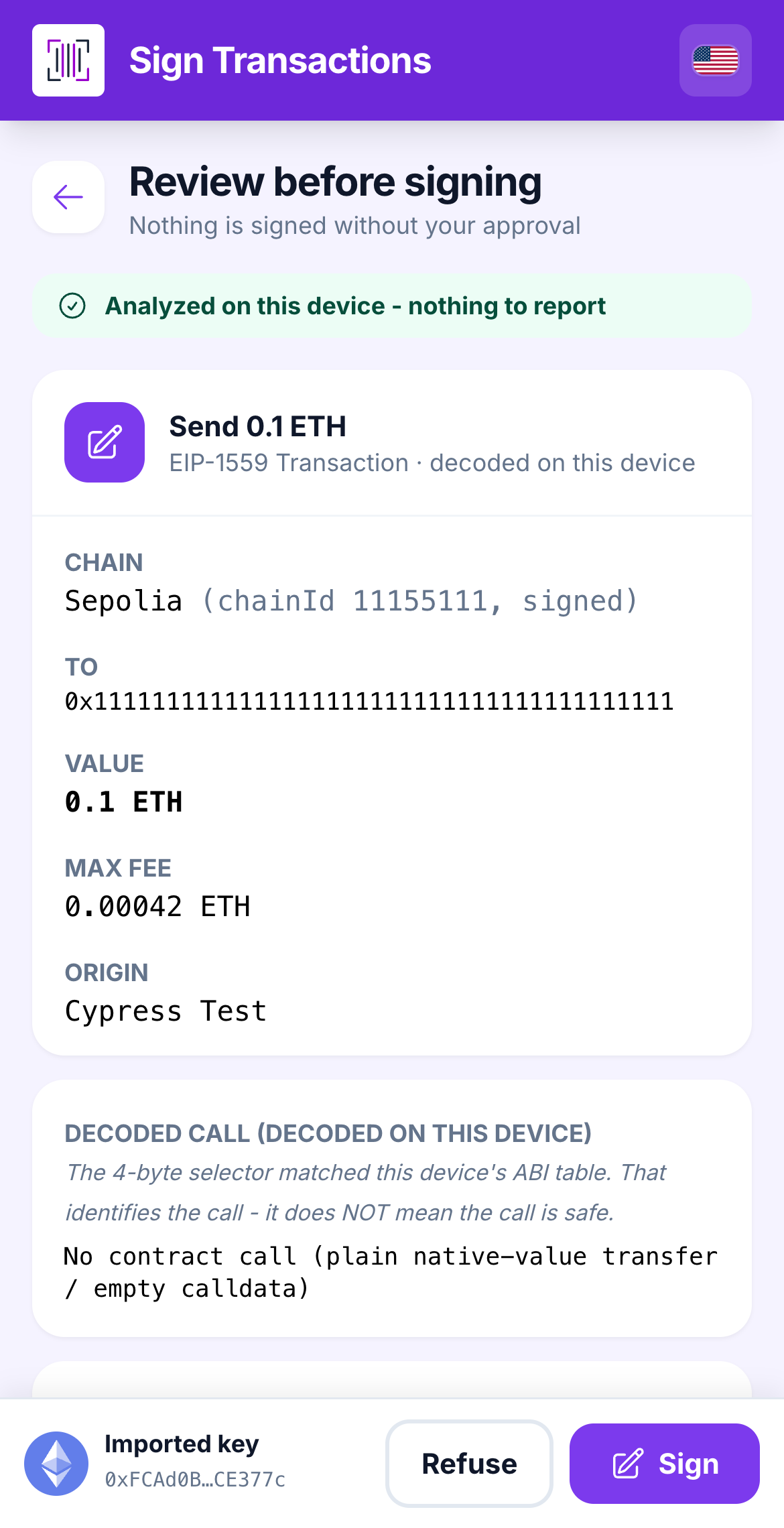
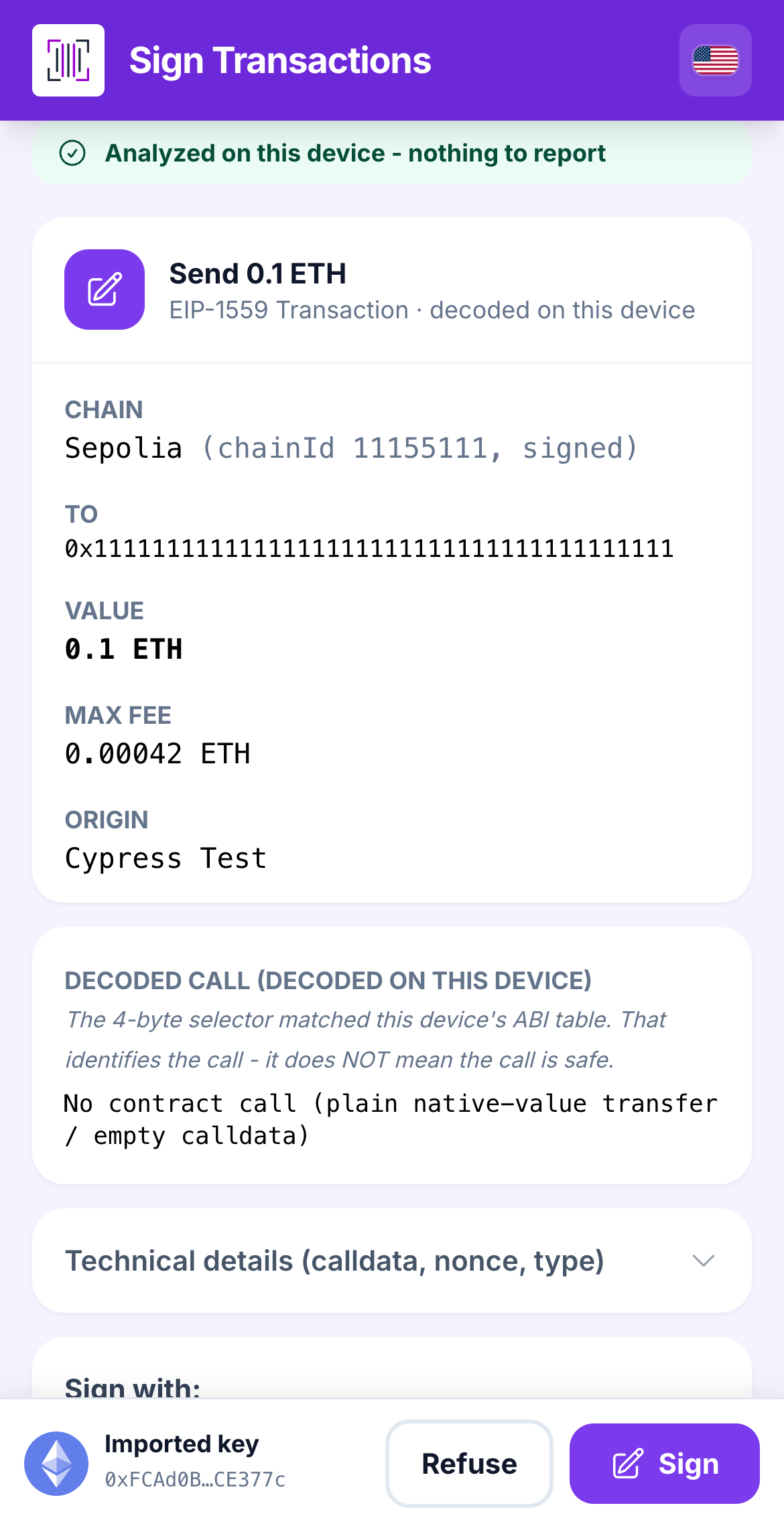
**Review before signing** shows the request decoded *on this device*: the type of operation, the chain, the recipient, the amount, the fee, and the account that will sign. Compare it with what you asked for on the computer. Tap **Technical details** for the raw fields.

<figure><img src="https://3674012151-files.gitbook.io/~/files/v0/b/gitbook-x-prod.appspot.com/o/spaces%2FT2jyfPJ4rcVavAvTU9nL%2Fuploads%2Fgit-blob-9bfbb5b826381cc19859eab8f122a43183fdcc24%2F03-rule-read.png?alt=media" alt="review screen"><figcaption><p>The review screen. This is the moment to read carefully.</p></figcaption></figure>
{% endstep %}

{% step %}

### Check the verdict strip

A colored strip above the details sums up the Vault's own analysis. It has four levels:

* **Green**: *Analyzed on this device - nothing to report.*
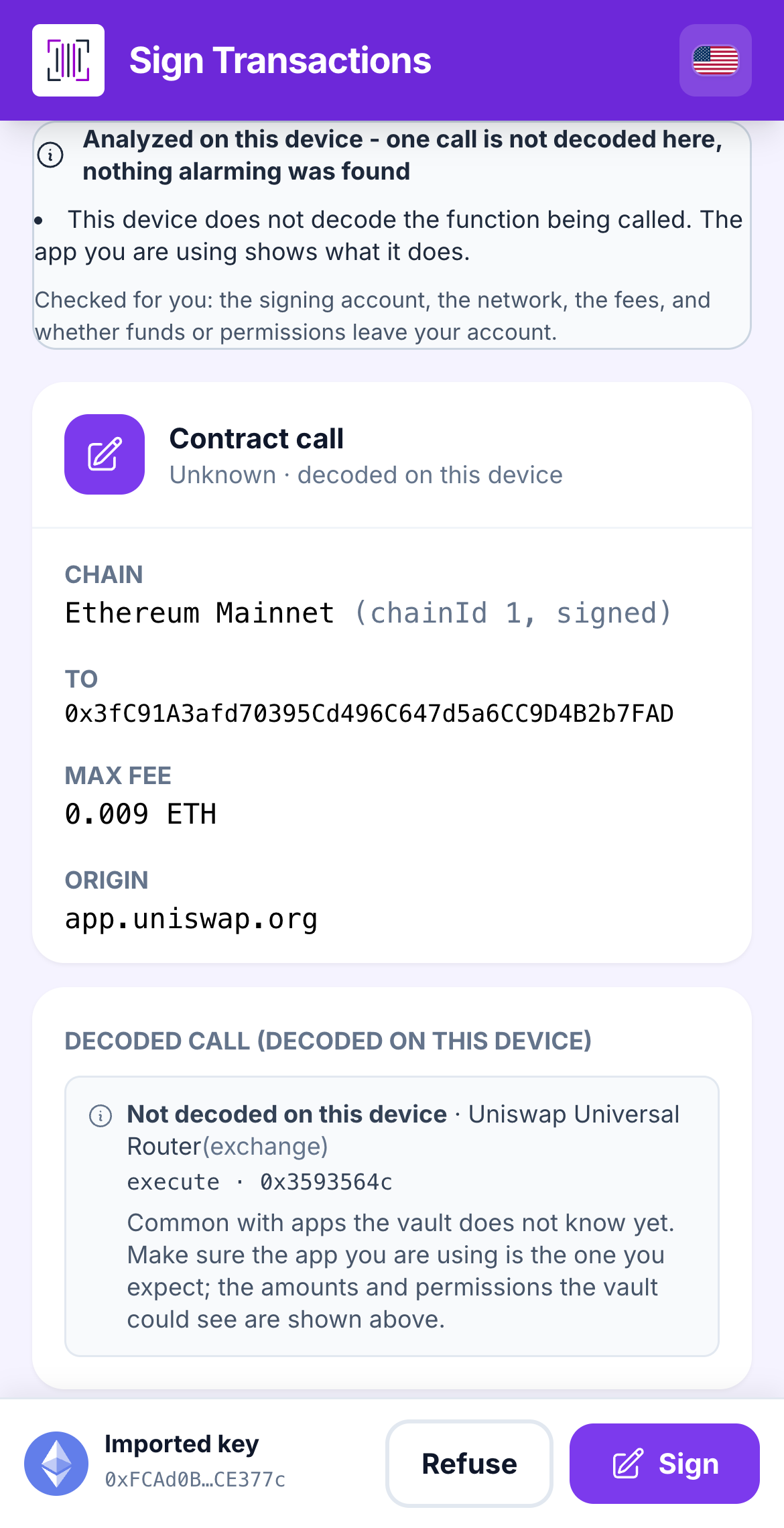
* **Grey**: *Analyzed on this device - one call is not decoded here, nothing alarming was found.* The Vault does not know this function, but it did check what matters: *the signing account, the network, the fees, and whether funds or permissions leave your account.* Nothing to tick.
* **Orange**: *review the findings below before signing.* Something is unusual; read the reasons.
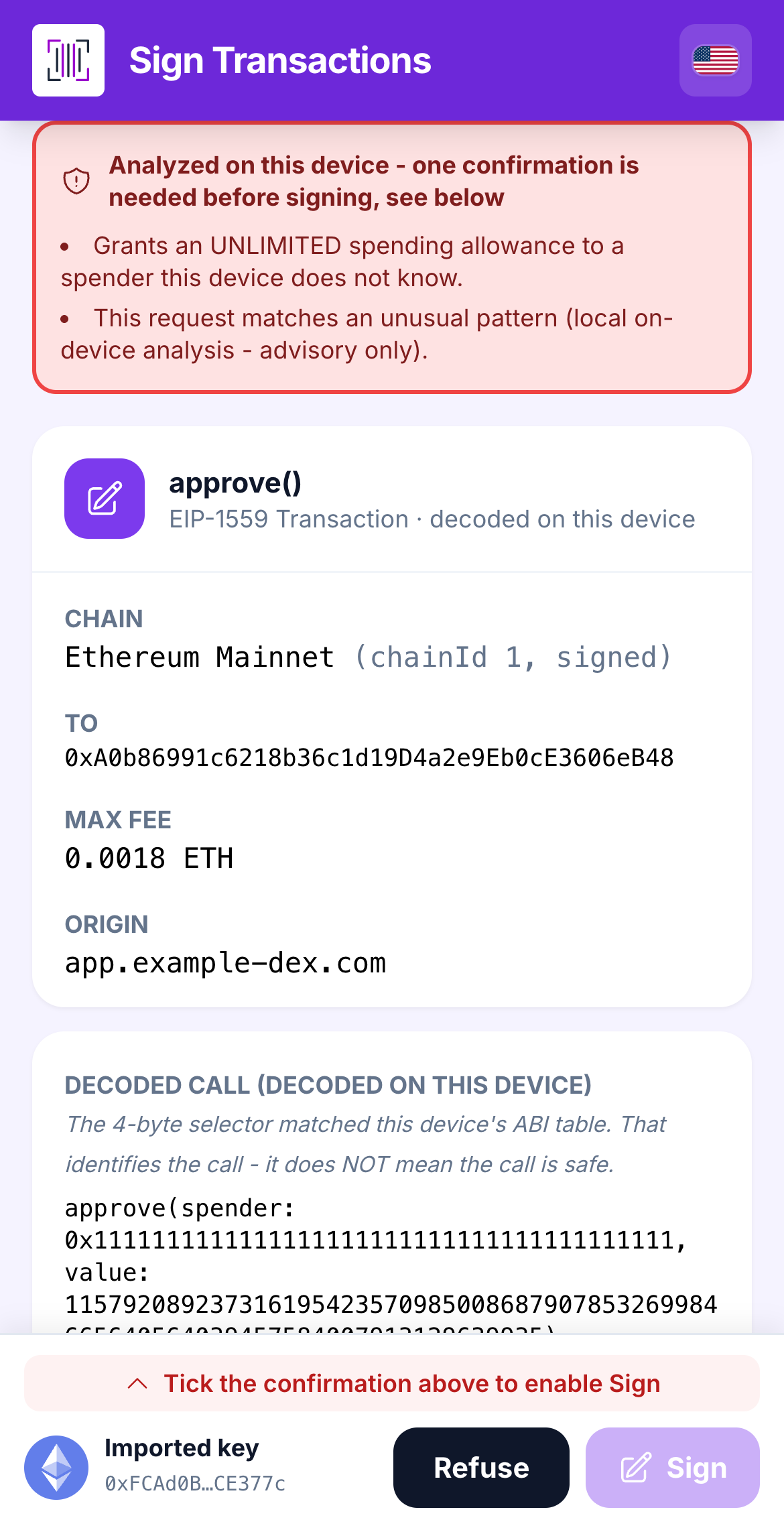
* **Red**: *one confirmation is needed before signing, see below.* A proven danger, with a checkbox.

<figure><img src="https://3674012151-files.gitbook.io/~/files/v0/b/gitbook-x-prod.appspot.com/o/spaces%2FT2jyfPJ4rcVavAvTU9nL%2Fuploads%2Fgit-blob-ef30542c6a770befa018a003a1276e7d924fae2c%2F08-sign-bar.png?alt=media" alt="risk verified"><figcaption><p>A green strip: nothing suspicious found.</p></figcaption></figure>

<figure><img src="https://3674012151-files.gitbook.io/~/files/v0/b/gitbook-x-prod.appspot.com/o/spaces%2FT2jyfPJ4rcVavAvTU9nL%2Fuploads%2Fgit-blob-0df5655ff2d852615c2b96f4edff626a20e36ead%2F10-risk-unknown.png?alt=media" alt="risk unknown"><figcaption><p>A grey strip: the call is not decoded, but the app being called is named and nothing alarming was found.</p></figcaption></figure>
{% endstep %}

{% step %}

### If it is red: read, then tick the box (or Refuse)

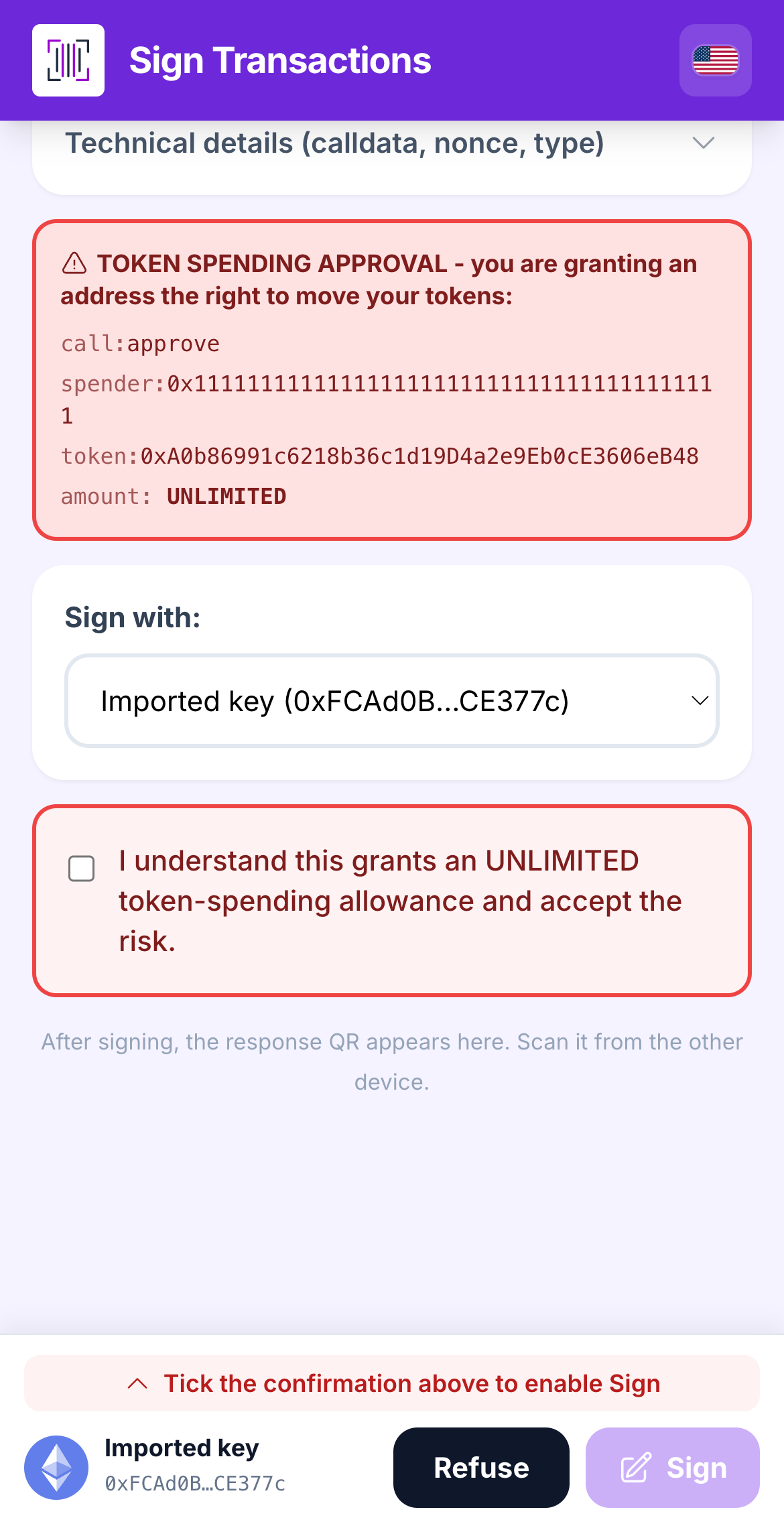
Red means the request does something the Vault has *proven* dangerous: an **unlimited** token approval, handing control of your account to a contract, a smuggled transaction, a Bitcoin fee it cannot verify, and so on. Each warning has its own checkbox such as *I understand this grants an UNLIMITED token-spending allowance and accept the risk.* The **Sign** button stays disabled until you tick them. When in doubt, **Refuse**.

<figure><img src="https://3674012151-files.gitbook.io/~/files/v0/b/gitbook-x-prod.appspot.com/o/spaces%2FT2jyfPJ4rcVavAvTU9nL%2Fuploads%2Fgit-blob-be2c42e09e2470e0644e3d05baca0e73bdb07c85%2F06-risk-danger-ack.png?alt=media" alt="risk danger ack"><figcaption><p>A red strip with its acknowledgement box.</p></figcaption></figure>
{% endstep %}

{% step %}

### The sign bar at the bottom

Whatever the chain, a fixed bar stays at the bottom of every review screen, under your thumb, so you never scroll to find the buttons. It shows the **signing account** (chain logo, name, short address, or *N Accounts Selected*), then **Refuse** and **Sign**. Sign lights up only when every checkbox is ticked. When an unticked box is the only thing in the way, the bar says *Tick the confirmation above to enable Sign*: one tap scrolls to it. The bar replaces the bottom navigation while a review is open.

<figure><img src="https://3674012151-files.gitbook.io/~/files/v0/b/gitbook-x-prod.appspot.com/o/spaces%2FT2jyfPJ4rcVavAvTU9nL%2Fuploads%2Fgit-blob-ef30542c6a770befa018a003a1276e7d924fae2c%2F08-sign-bar.png?alt=media" alt="sign bar"><figcaption><p>The sign bar: account, Refuse, Sign.</p></figcaption></figure>

<figure><img src="https://3674012151-files.gitbook.io/~/files/v0/b/gitbook-x-prod.appspot.com/o/spaces%2FT2jyfPJ4rcVavAvTU9nL%2Fuploads%2Fgit-blob-eeadad47bc69761b6bc8894c0ca04861081b10e0%2F09-gate-hint.png?alt=media" alt="gate hint"><figcaption><p>Sign is greyed out, and the bar says which confirmation is missing.</p></figcaption></figure>
{% endstep %}

{% step %}

### Tap Sign, then show the signed QR

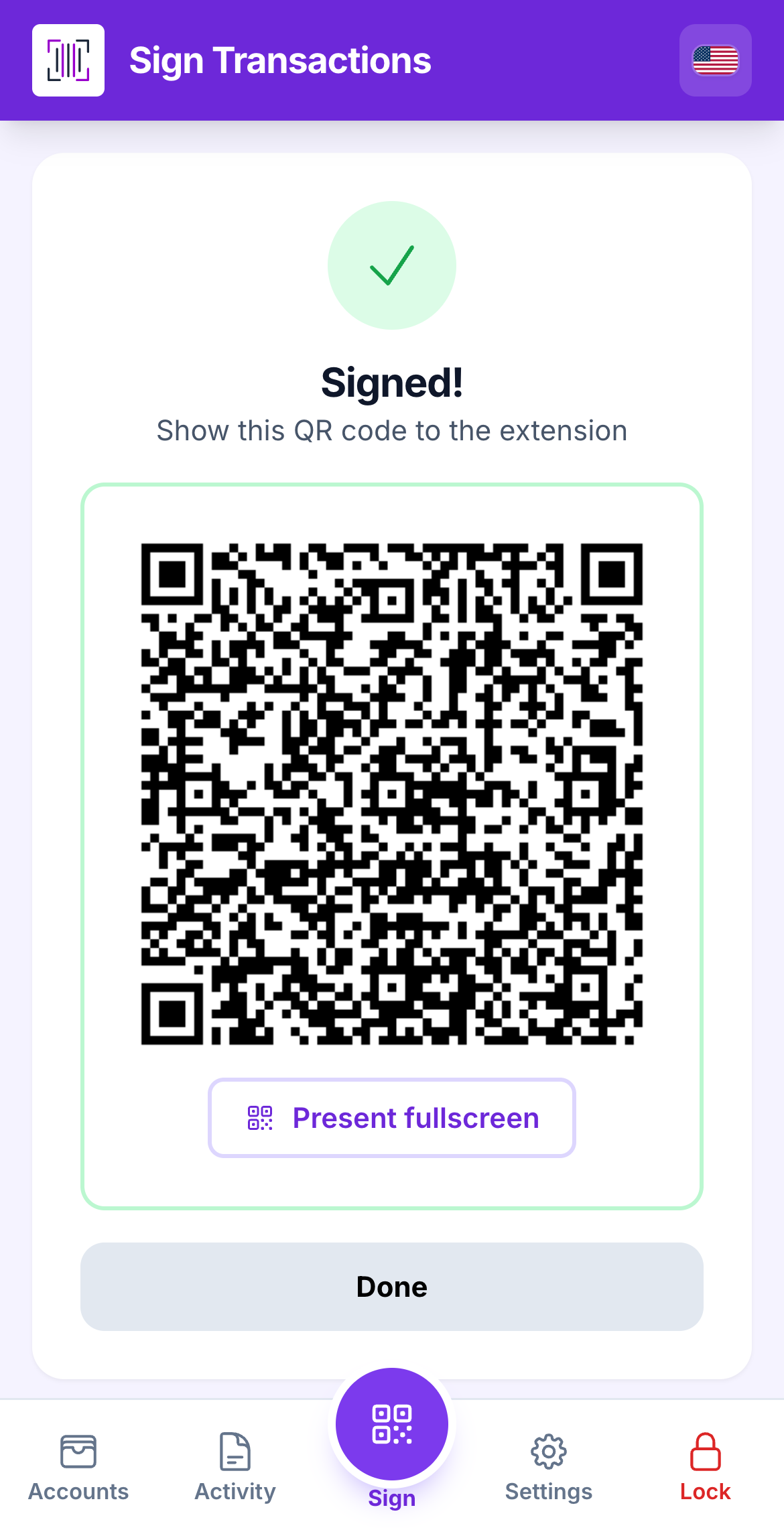
Tap **Sign** and enter your master password if the Vault asks. The screen shows **Signed! Show the QR to the extension.** with the signature as a QR code. Tap **Present fullscreen** to make it bigger.

<figure><img src="https://3674012151-files.gitbook.io/~/files/v0/b/gitbook-x-prod.appspot.com/o/spaces%2FT2jyfPJ4rcVavAvTU9nL%2Fuploads%2Fgit-blob-21baf0198aa309545394eacee89ce0b47a80e7be%2F07-signed-qr.png?alt=media" alt="signed qr"><figcaption><p>The signed answer, ready for the webcam.</p></figcaption></figure>
{% endstep %}

{% step %}

### Hold it up to the computer's camera

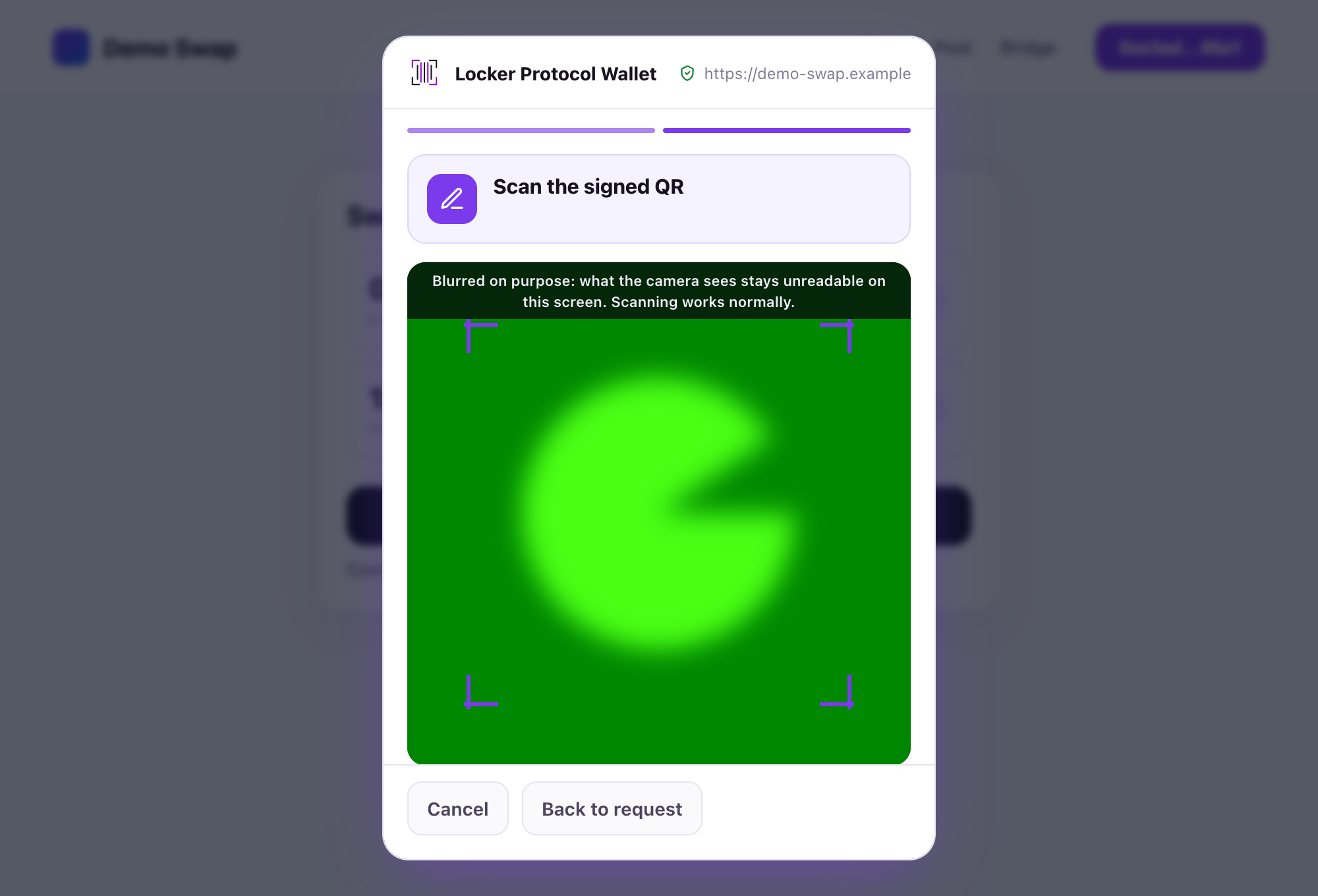
The extension is already waiting with **Scan the signed QR**. Hold the Vault steady in front of the webcam. When the extension has the signature it sends the transaction. Tap **Done** on the Vault.

<figure><img src="https://3674012151-files.gitbook.io/~/files/v0/b/gitbook-x-prod.appspot.com/o/spaces%2FT2jyfPJ4rcVavAvTU9nL%2Fuploads%2Fgit-blob-2bcee8bb00e48f993b5b602aaa4ae20991abf71a%2F07-scan-response.png?alt=media" alt="back to extension"><figcaption><p>The extension reading the signature from the Vault.</p></figcaption></figure>
{% endstep %}
{% endstepper %}

{% hint style="info" %}
**What you see when it worked:** the extension shows a **Submitted** toast and the transaction appears in **Activity**. The Vault adds an entry to its [Signature journal](/vault/signature-journal.md).
{% endhint %}

{% hint style="warning" %}
**If something goes wrong**

* *"Address not recognized" / "The requested address is not in your accounts":* the request is for an account this Vault does not have. The Vault refuses. Check you are using the right Vault.
* *"Unsupported QR request type":* the request uses a format this Vault version does not sign. Update the Vault (reconnect once, open it, wait for the offline copy, go back offline).
* *The review does not match what you asked for on the computer:* tap **Refuse**. Something between the website and the extension is wrong; nothing was signed.
* *You tapped Sign but the extension never got it:* show the QR again. A signature can be scanned as many times as needed; it is only valid for this exact request.
  {% endhint %}

## What the review screen shows, per chain

{% content-ref url="/pages/vuu6ND5YMYQKGExt2WLC" %}
[Ethereum & EVM review screen](/vault/sign-a-transaction/ethereum-and-evm.md)
{% endcontent-ref %}

{% content-ref url="/pages/7u1BNsP2dNSa75qjrV0Y" %}
[Bitcoin review screen](/vault/sign-a-transaction/bitcoin.md)
{% endcontent-ref %}

{% content-ref url="/pages/N9XysZtOF0cL0MOcfkiw" %}
[Solana review screen](/vault/sign-a-transaction/solana.md)
{% endcontent-ref %}

{% content-ref url="/pages/4YMD80MeeV4mjIfnEPP6" %}
[Tron review screen](/vault/sign-a-transaction/tron.md)
{% endcontent-ref %}

{% content-ref url="/pages/QNjKyLz8gKcHc1RjYkbx" %}
[Sui review screen](/vault/sign-a-transaction/sui.md)
{% endcontent-ref %}

{% content-ref url="/pages/KwAF2RB6SAqU673qANzt" %}
[Stellar review screen](/vault/sign-a-transaction/stellar.md)
{% endcontent-ref %}

{% content-ref url="/pages/EJeZl5Ko1yHMRwMIAodb" %}
[Hyperliquid review screens](/vault/sign-a-transaction/hyperliquid.md)
{% endcontent-ref %}

## Learn more

* [Risk warnings explained](/reference/risk-warnings-explained.md)
* [Sign what a dApp asks (extension side)](/browser-extension/sign-what-a-dapp-asks.md)


---

# Agent Instructions
This documentation is published with GitBook. GitBook is the documentation platform designed so that both humans and AI agents can read, navigate, and reason over technical content effectively. Learn more at gitbook.com.

## Querying This Documentation
If you need additional information that is not directly available in this page, you can query the documentation dynamically by asking a question.

Perform an HTTP GET request on the current page URL with the `ask` query parameter, and the optional `goal` query parameter:

```
GET https://doc.lockerprotocol.com/vault/sign-a-transaction.md?ask=<question>&goal=<endgoal>
```

`ask` is the immediate question: it should be specific, self-contained, and written in natural language.
`goal` is optional and describes the broader end goal you are ultimately trying to accomplish on behalf of the user. GitBook uses it to tailor the answer towards what is most useful for that goal.

The response will contain a direct answer to the question and relevant excerpts and sources from the documentation.

Use this mechanism when the answer is not explicitly present in the current page, you need clarification or additional context, or you want to retrieve related documentation sections.