> For the complete documentation index, see [llms.txt](https://doc.lockerprotocol.com/llms.txt). Markdown versions of documentation pages are available by appending `.md` to page URLs; this page is available as [Markdown](https://doc.lockerprotocol.com/vault/install.md).
# Install the Vault
Put the Vault app on a device you will keep offline forever.
The Vault is a free web app. You open it once while online, save it to the home screen, wait for it to say the offline copy is ready, and then you switch the device to airplane mode for good.
## What you need
* The phone or tablet you chose for the Vault (see [What you need](/start-here/what-you-need.md)), connected to Wi-Fi **for this step only**.
* Your computer with the extension installed, or any device that can show you the link `https://vault.lockerprotocol.com`.
{% stepper %}
{% step %}
### Get the link as a QR code
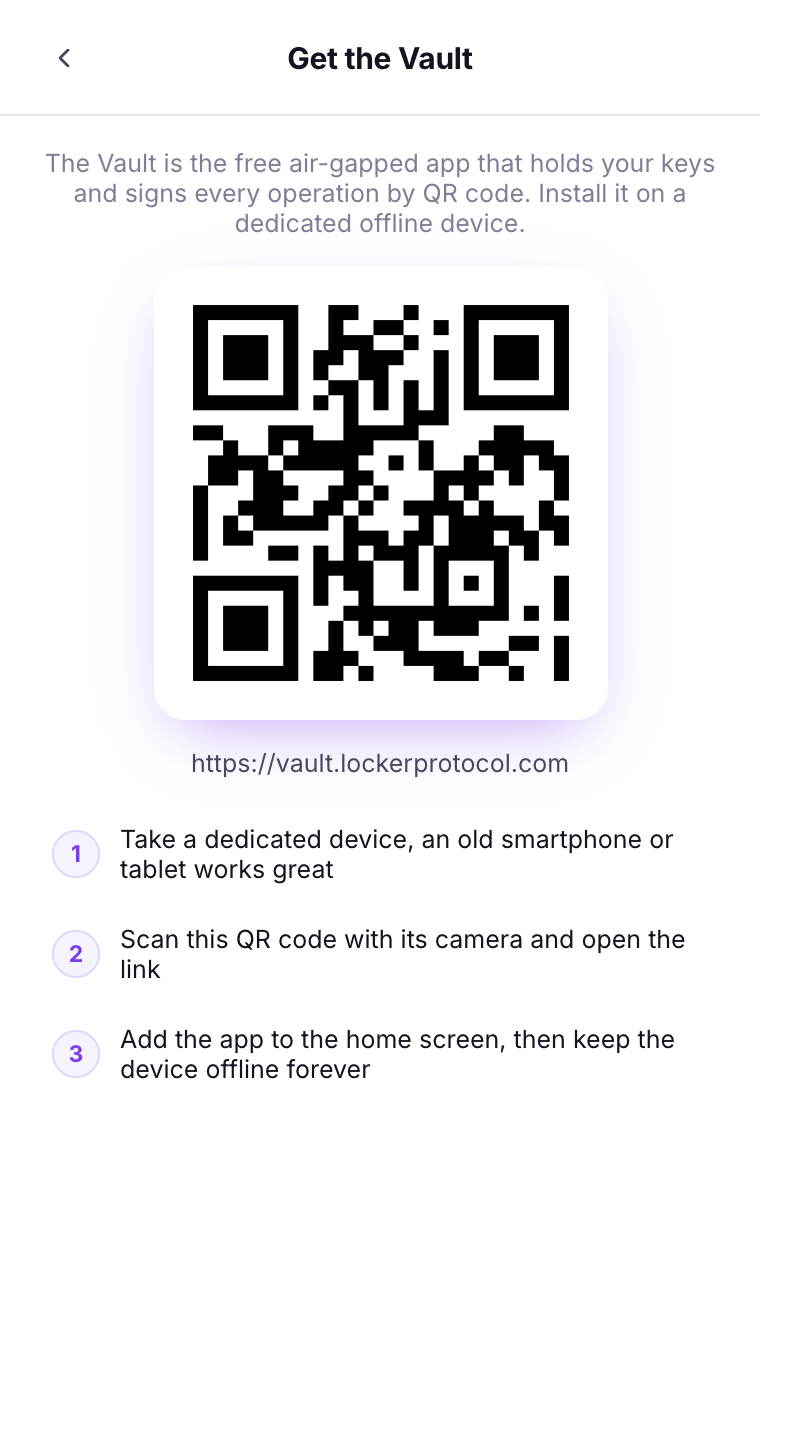
In the extension, click **I don't have a vault yet** → **Get the free Vault app**. The extension shows `vault.lockerprotocol.com` as a QR code. (You can also just type the address in the phone's browser.)
The "Get the Vault" screen in the extension.
{% endstep %}
{% step %}
### Scan it with the phone and open the link
Point the phone's camera at the QR code and tap the link that pops up. The Vault's welcome page opens in the browser.
{% endstep %}
{% step %}
### On iPhone / iPad: add it to the home screen
In Safari, tap the **Share** button (the square with an arrow), then **Add to Home Screen**, then **Add**.
{% endstep %}
{% step %}
### On Android: add it to the home screen
In Chrome, tap the **⋮** menu, then **Add to Home screen** (or **Install app**), then **Install**.
{% endstep %}
{% step %}
### Open the Vault from its icon
Close the browser and open the Vault from the new icon on the home screen. From now on, always open it this way.
{% endstep %}
{% step %}
### Wait for "Offline copy ready"
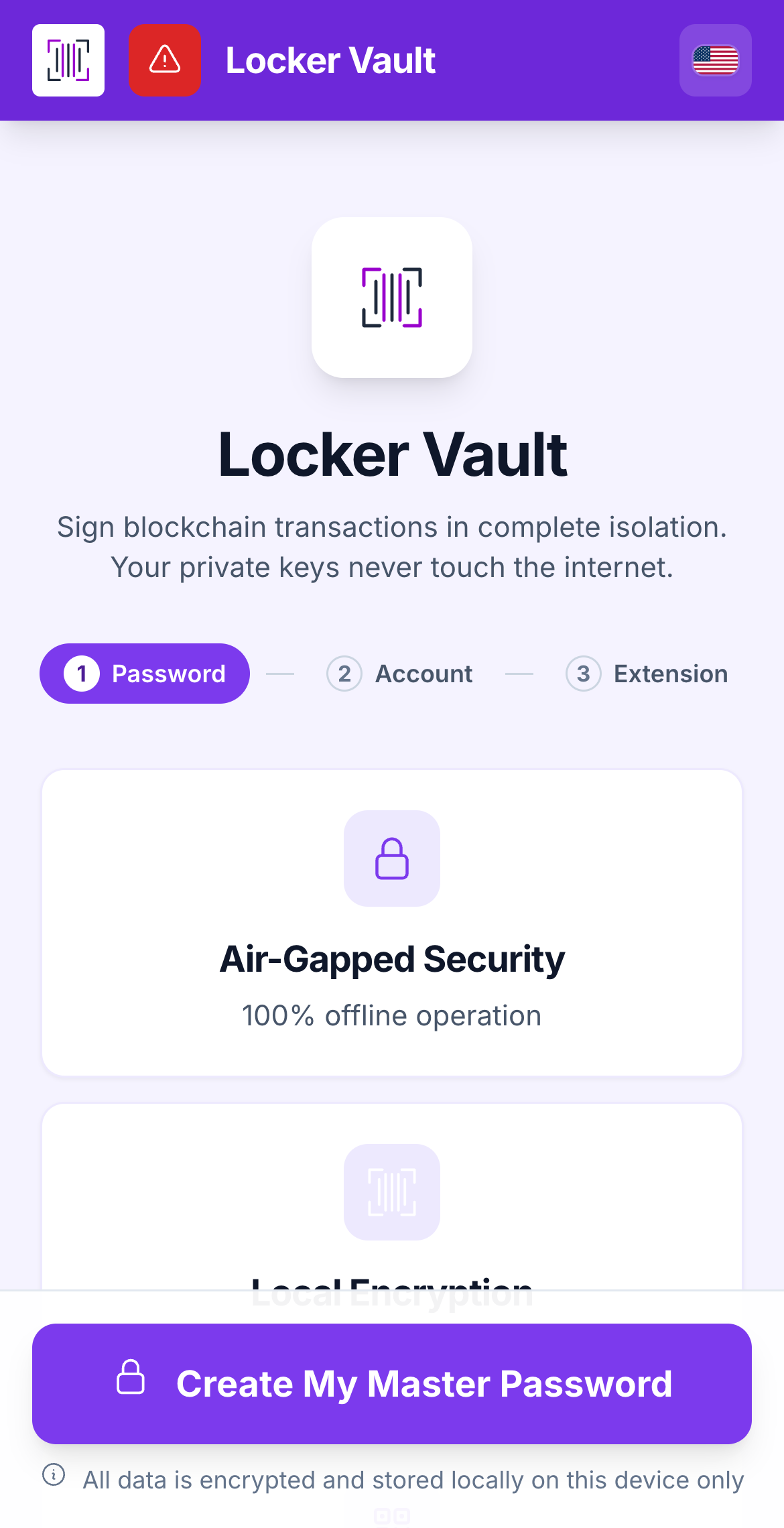
At the top of the screen the Vault first says **Preparing the offline copy - keep this page open a few more seconds before disconnecting**. Wait until it changes to **Offline copy ready - you can enable airplane mode now**.
The red badge in the header (and the red banner) mean the device is still online.
{% endstep %}
{% step %}
### Turn on airplane mode, and leave it on
Open the phone's settings and turn on **airplane mode**. Also check that Wi-Fi and Bluetooth are off. This device is now your Vault. It should never go online again.
{% endstep %}
{% step %}
### Open the Vault again
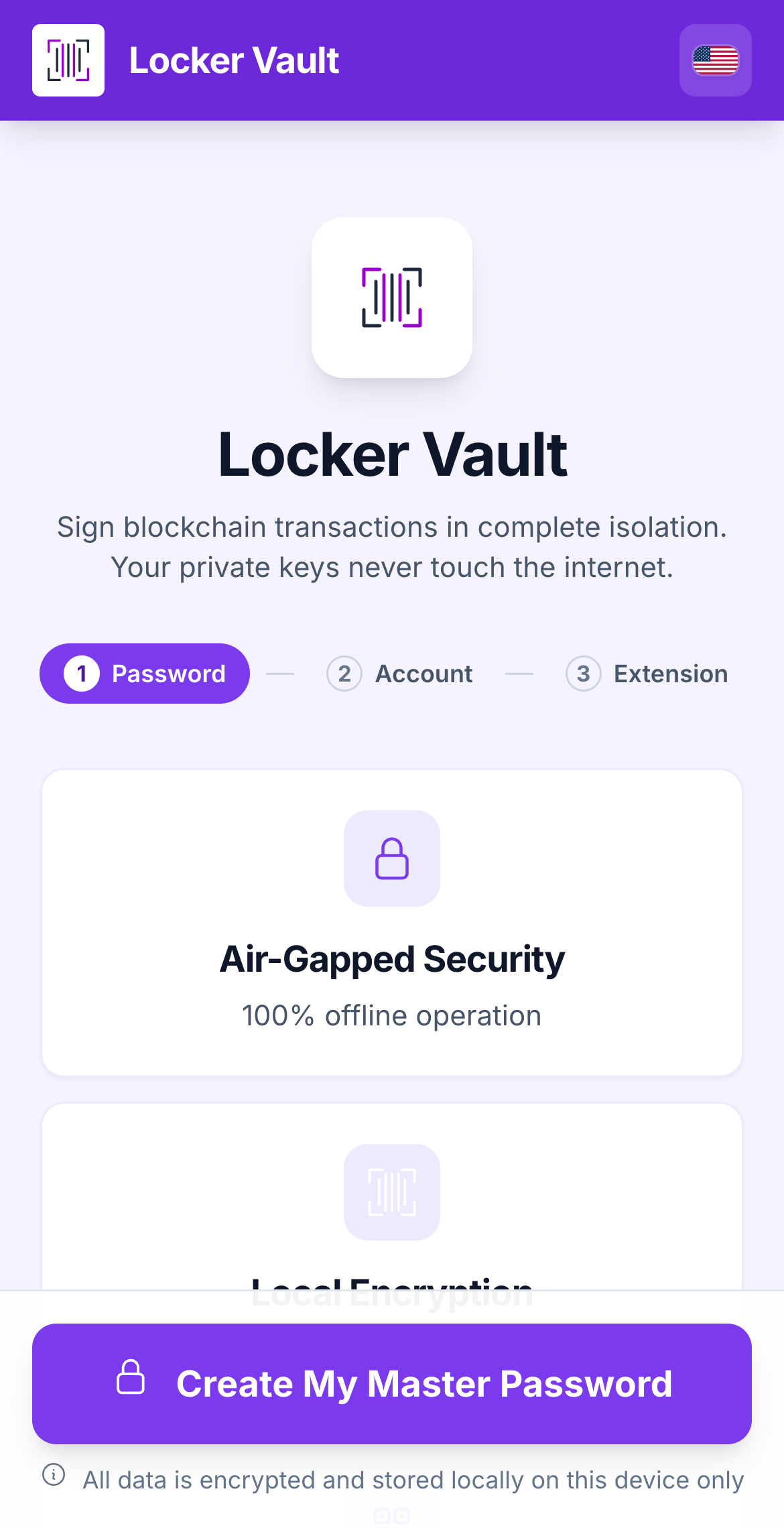
Open it from the icon. It now shows the welcome page with three steps: **Password**, **Account**, **Extension**. The red network banner is gone, because you are offline.
First launch, fully offline.
{% endstep %}
{% endstepper %}
{% hint style="info" %}
**What you see when it worked:** no red banner at the top of the Vault. If you ever see **INTERNET DETECTED - DISCONNECT FOR SECURITY**, the device is online: turn airplane mode back on.
{% endhint %}
{% hint style="warning" %}
**If something goes wrong**
* *The banner says "OFFLINE COPY INCOMPLETE":* reconnect once, open the Vault, keep it open for a minute until it says the copy is ready, then go back to airplane mode.
* *The Vault opens in the browser, not as an app:* you opened the link instead of the home-screen icon. Use the icon.
* *No "Add to Home Screen" option:* on iPhone this only appears in Safari, not in Chrome or an in-app browser. Open the link in Safari.
{% endhint %}
## Learn more
* [Accept the terms](/vault/accept-the-terms.md), the next step.
* [Safety rules](/start-here/safety-rules.md)
---
# Agent Instructions
This documentation is published with GitBook. GitBook is the documentation platform designed so that both humans and AI agents can read, navigate, and reason over technical content effectively. Learn more at gitbook.com.
## Querying This Documentation
If you need additional information that is not directly available in this page, you can query the documentation dynamically by asking a question.
Perform an HTTP GET request on the current page URL with the `ask` query parameter, and the optional `goal` query parameter:
```
GET https://doc.lockerprotocol.com/vault/install.md?ask=&goal=
```
`ask` is the immediate question: it should be specific, self-contained, and written in natural language.
`goal` is optional and describes the broader end goal you are ultimately trying to accomplish on behalf of the user. GitBook uses it to tailor the answer towards what is most useful for that goal.
The response will contain a direct answer to the question and relevant excerpts and sources from the documentation.
Use this mechanism when the answer is not explicitly present in the current page, you need clarification or additional context, or you want to retrieve related documentation sections.