> For the complete documentation index, see [llms.txt](https://doc.lockerprotocol.com/llms.txt). Markdown versions of documentation pages are available by appending `.md` to page URLs; this page is available as [Markdown](https://doc.lockerprotocol.com/vault/add-an-account/restore-a-qr-backup.md).
# Restore a QR backup
Scan an encrypted backup QR made by another Vault.
If you printed an [encrypted QR backup](/vault/export-a-qr-backup.md) from a Vault, any Vault can read it back. Two passwords are involved: the **QR encryption password** you chose when exporting, and this Vault's **master password**.
## What you need
* The Vault, unlocked.
* The printed backup QR.
* The QR encryption password you set when you exported.
{% stepper %}
{% step %}
### Choose "Restore a QR backup" and scan
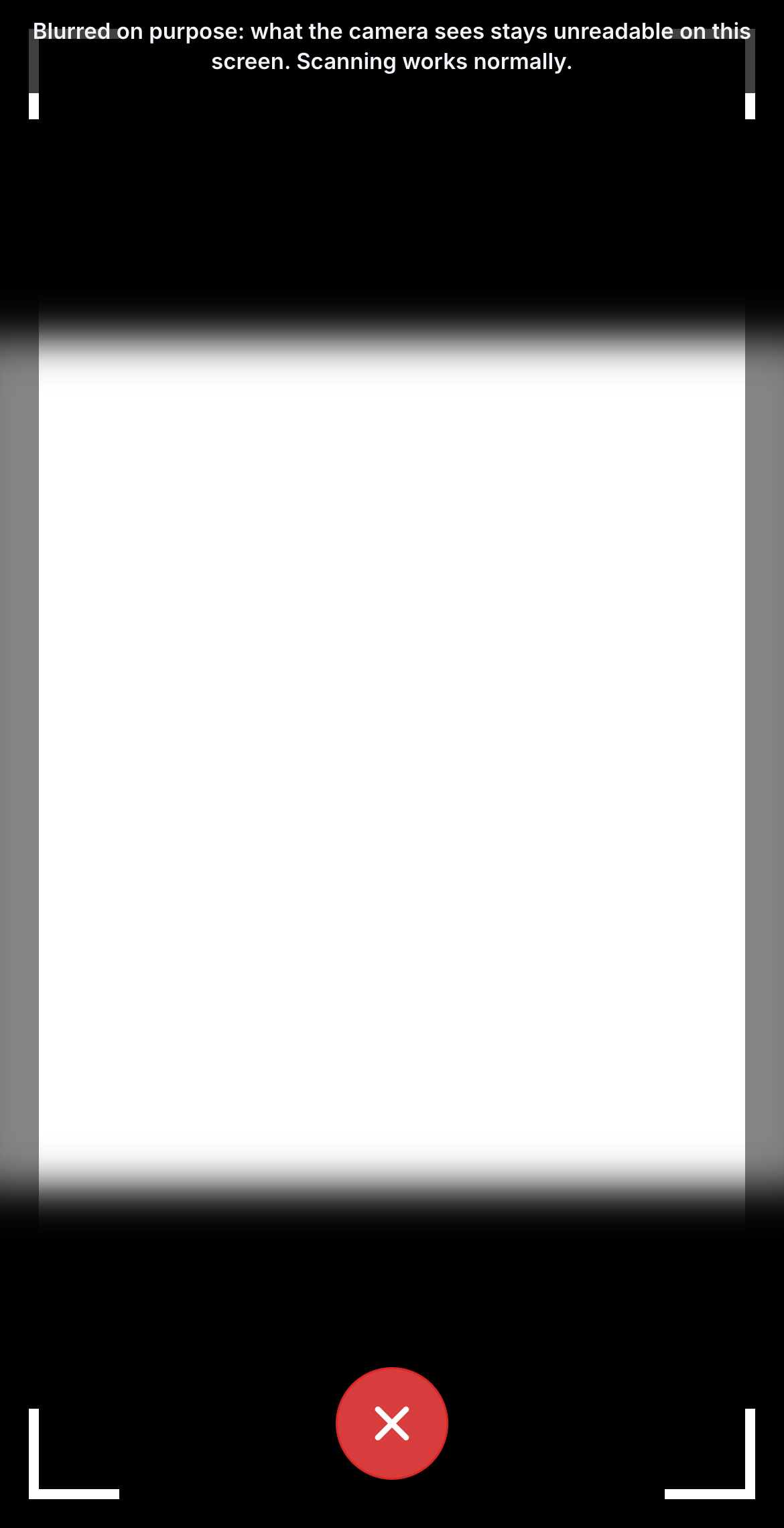
Tap **Add** → **Restore a QR backup** → **Start Camera**. Point the camera at the printed QR. If the backup spans several codes, keep scanning until **QR code fully scanned**.
Scanning the printed backup.
{% endstep %}
{% step %}
### Enter the QR encryption password
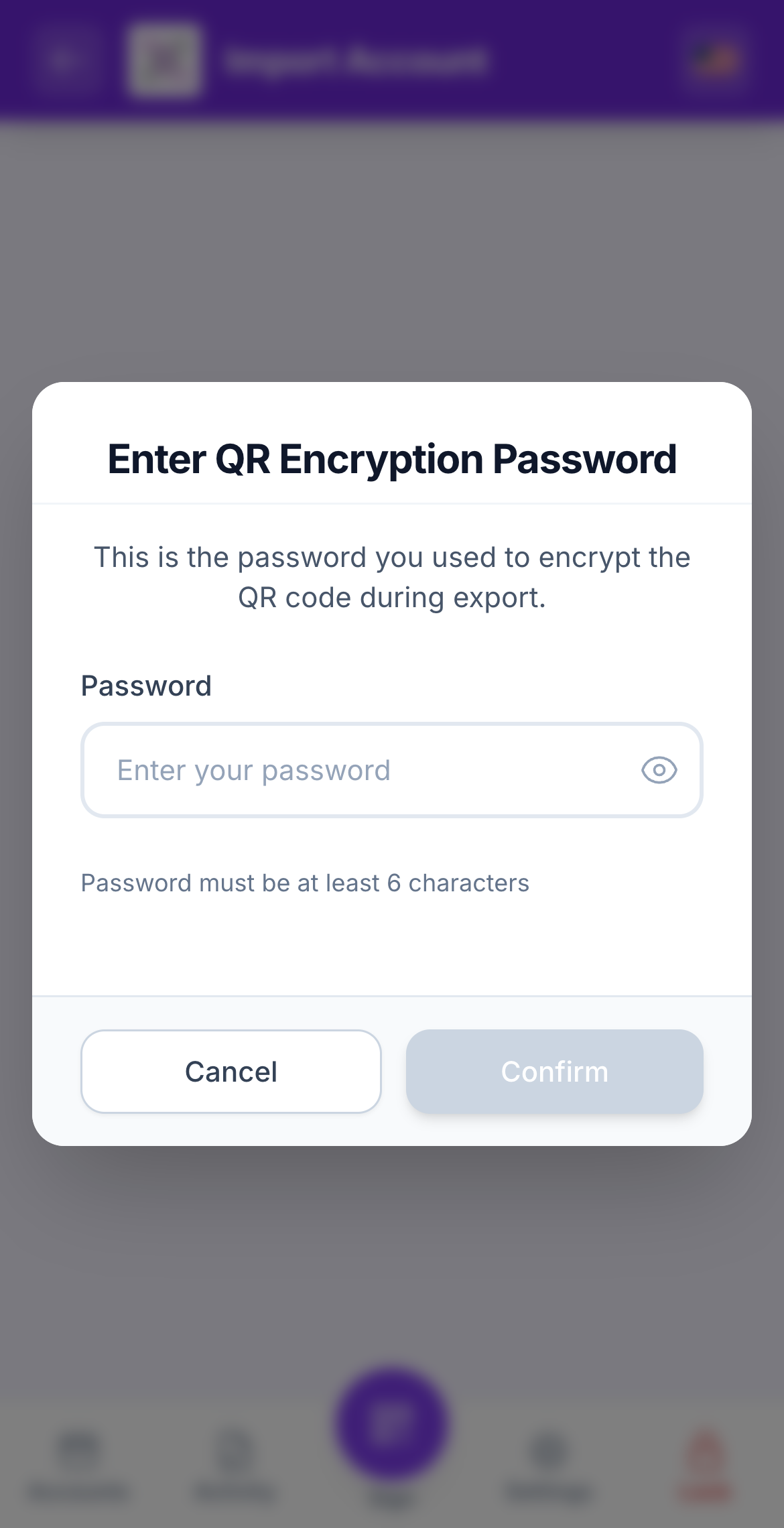
Tap **Continue**. The Vault asks for the **QR encryption password** (the one you created during export, not your master password) to decrypt the backup.
First password: the one that protects the QR.
{% endstep %}
{% step %}
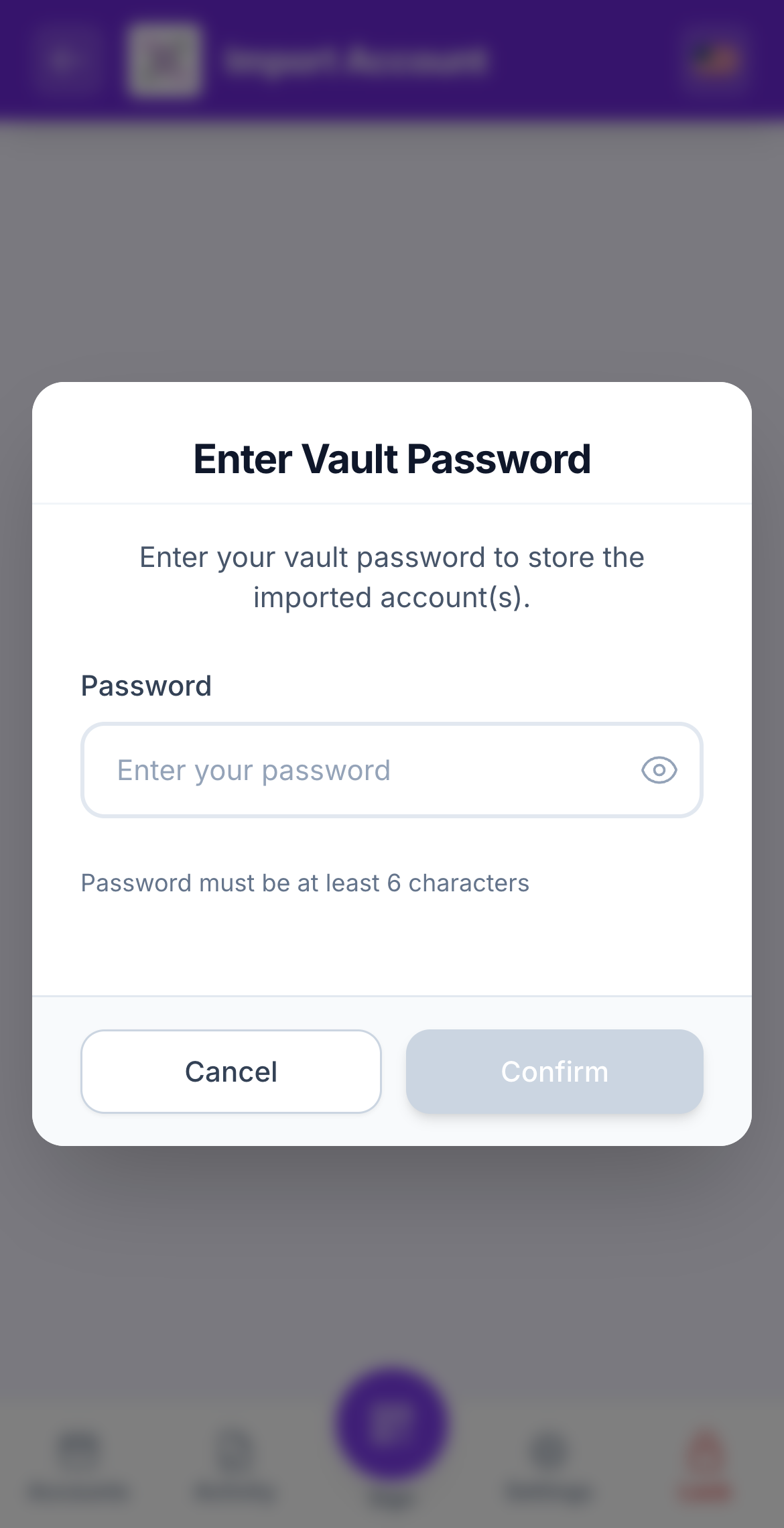
### Enter this Vault's master password
Then the Vault asks for its own master password, to encrypt and store the accounts on this device. It confirms with **account(s) imported successfully!**
Restored. The accounts appear on the Accounts screen.
{% endstep %}
{% endstepper %}
{% hint style="info" %}
**Why two passwords?** The QR could be seen by someone. Its own password keeps it unreadable. Your master password protects the Vault itself. They must be different.
{% endhint %}
{% hint style="warning" %}
**If something goes wrong**
* *"Failed to decrypt QR code":* wrong QR encryption password. It is case-sensitive.
* *"account(s) skipped (already exist)":* those accounts were already on this Vault.
* *The camera cannot read the print:* more light, hold still, and make sure the whole code is in the frame.
{% endhint %}
## Learn more
* [Export a paper / QR backup](/vault/export-a-qr-backup.md)
---
# Agent Instructions
This documentation is published with GitBook. GitBook is the documentation platform designed so that both humans and AI agents can read, navigate, and reason over technical content effectively. Learn more at gitbook.com.
## Querying This Documentation
If you need additional information that is not directly available in this page, you can query the documentation dynamically by asking a question.
Perform an HTTP GET request on the current page URL with the `ask` query parameter, and the optional `goal` query parameter:
```
GET https://doc.lockerprotocol.com/vault/add-an-account/restore-a-qr-backup.md?ask=&goal=
```
`ask` is the immediate question: it should be specific, self-contained, and written in natural language.
`goal` is optional and describes the broader end goal you are ultimately trying to accomplish on behalf of the user. GitBook uses it to tailor the answer towards what is most useful for that goal.
The response will contain a direct answer to the question and relevant excerpts and sources from the documentation.
Use this mechanism when the answer is not explicitly present in the current page, you need clarification or additional context, or you want to retrieve related documentation sections.