> For the complete documentation index, see [llms.txt](https://doc.lockerprotocol.com/llms.txt). Markdown versions of documentation pages are available by appending `.md` to page URLs; this page is available as [Markdown](https://doc.lockerprotocol.com/vault/add-an-account/create-a-new-account.md).

# Create a new account

Make a brand-new account in three steps: randomness, backup, verify.

The Vault makes a new secret phrase for you, shows it once so you can write it down, then checks that you really did. Three steps: **Randomness → Backup → Verify**.

## What you need

* The Vault, unlocked.
* **Paper and a pen.** Not a phone, not a screenshot.
* Two quiet minutes where nobody can look over your shoulder.

{% stepper %}
{% step %}

### Choose "Create an account"

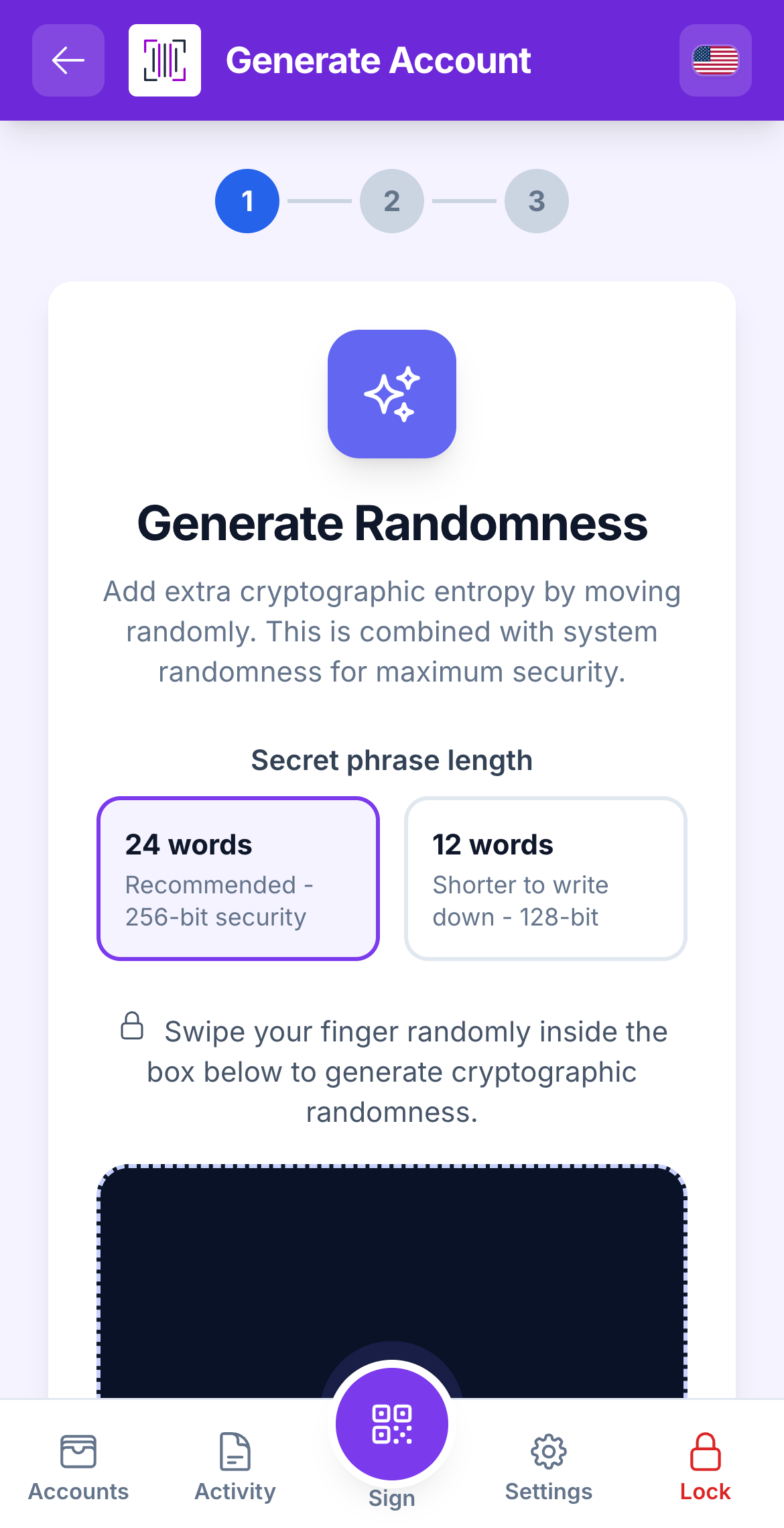
Tap **Add** → **Create an account**. First pick the phrase length: **24 words** (recommended) or **12 words** (shorter to write down). Both are safe; 24 is the stronger choice.

<figure><img src="https://3674012151-files.gitbook.io/~/files/v0/b/gitbook-x-prod.appspot.com/o/spaces%2FT2jyfPJ4rcVavAvTU9nL%2Fuploads%2Fgit-blob-620d0e56de6bc54c9bf7d87ccb6bdc1ddcae6c98%2F01-step-randomness.png?alt=media" alt="step randomness"><figcaption><p>Step 1 of 3: Randomness. Choose 12 or 24 words.</p></figcaption></figure>
{% endstep %}

{% step %}

### Swipe randomly in the box

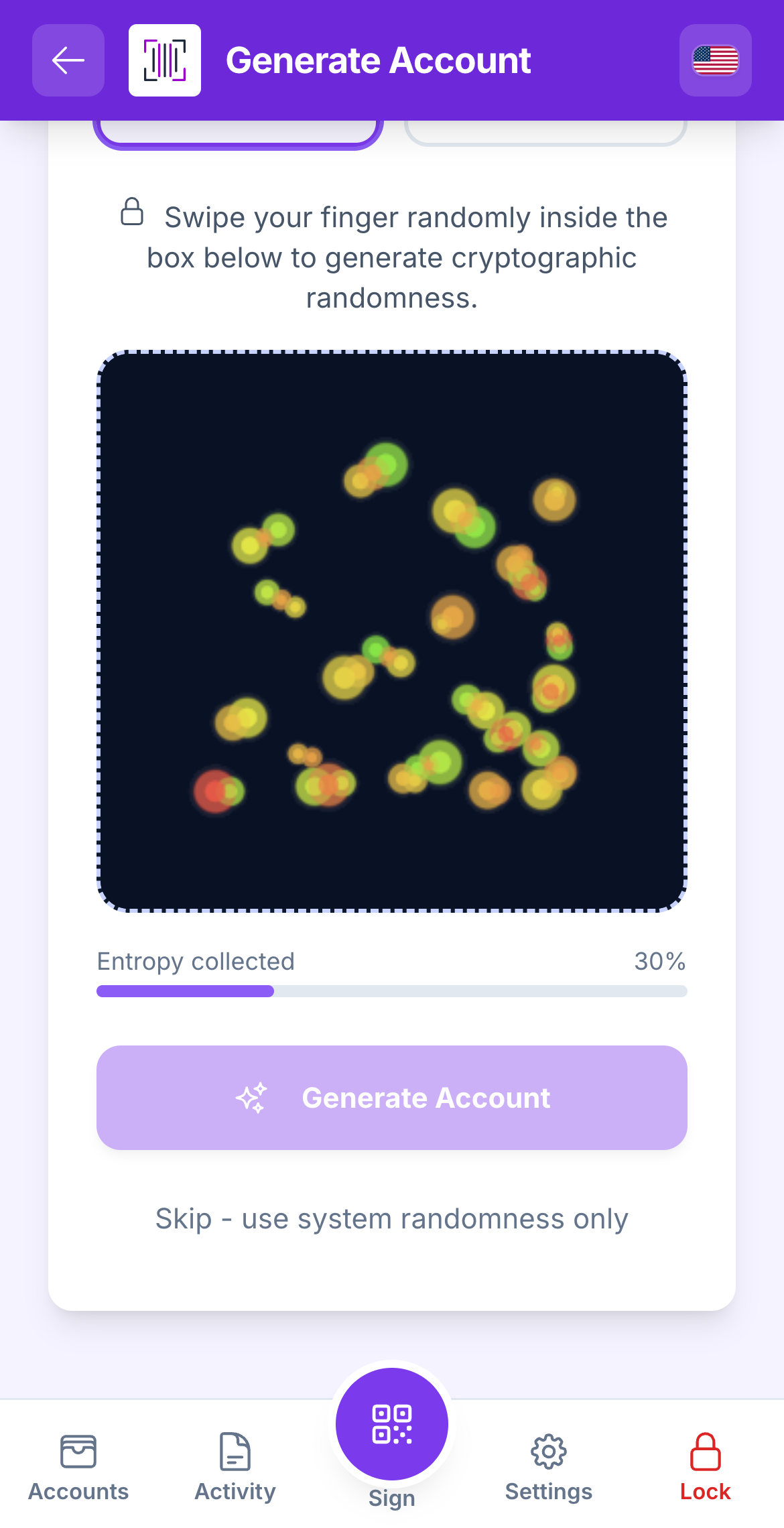
Under **Generate Randomness**, move your finger around inside the box for a few seconds, any way you like. The particles follow you. When the bar is full, the Vault says **Entropy collected!** Tap **Generate Account**.

<figure><img src="https://3674012151-files.gitbook.io/~/files/v0/b/gitbook-x-prod.appspot.com/o/spaces%2FT2jyfPJ4rcVavAvTU9nL%2Fuploads%2Fgit-blob-352f2ba8dface15e5d739f56b47a7fb5082fec96%2F02-entropy-canvas.png?alt=media" alt="entropy canvas"><figcaption><p>Your random movements are mixed with the device's own randomness.</p></figcaption></figure>

*Why?* Your wiggles are turned into extra randomness and mixed with the device's own. Even if one source were weak, the other covers it.
{% endstep %}

{% step %}

### Write down the words, in order

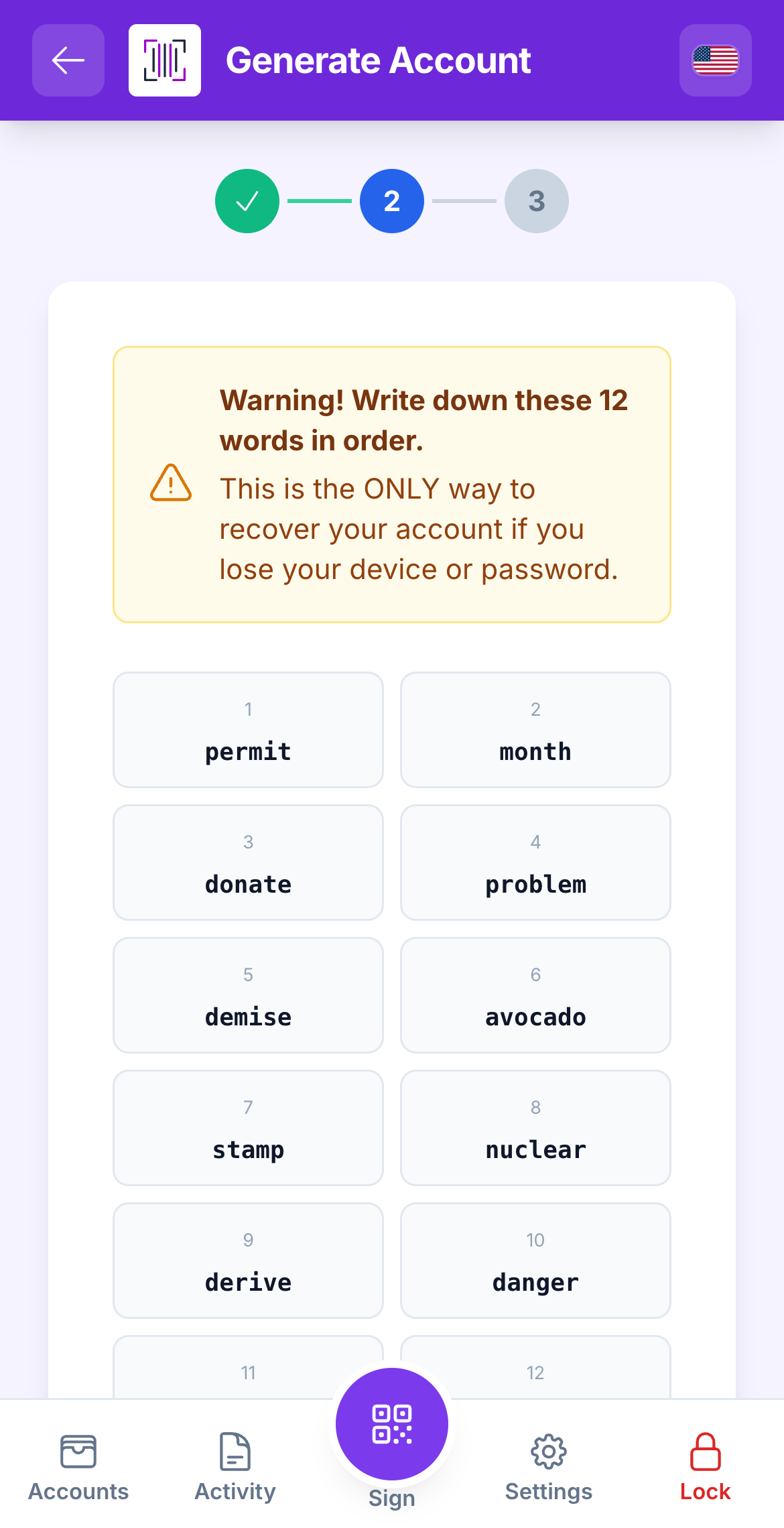
Step 2, **Backup**, shows your words with their numbers. Write them on paper, **in this exact order**, and check every word twice. Give the account a name if you like.

<figure><img src="https://3674012151-files.gitbook.io/~/files/v0/b/gitbook-x-prod.appspot.com/o/spaces%2FT2jyfPJ4rcVavAvTU9nL%2Fuploads%2Fgit-blob-a58a8723760064b188e3fecca2d72ec4da801fbb%2F03-step-backup-words.png?alt=media" alt="step backup words"><figcaption><p>The secret phrase. This is the only time the Vault shows it unasked.</p></figcaption></figure>
{% endstep %}

{% step %}

### Keep the paper safe

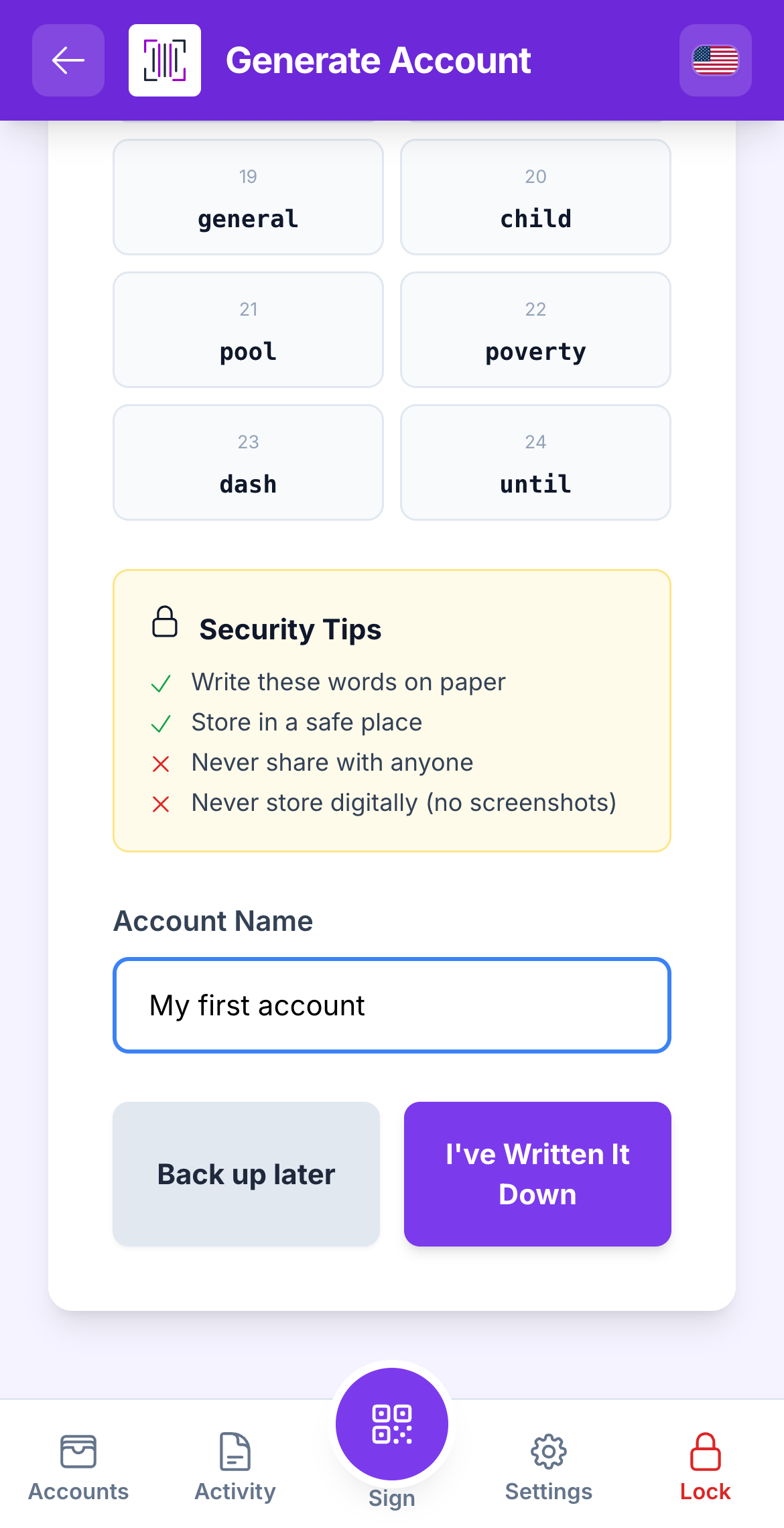
The screen reminds you of the four tips: write on paper, store in a safe place, never share, never store digitally. When your paper is done, tap **I've Written It Down**.

<figure><img src="https://3674012151-files.gitbook.io/~/files/v0/b/gitbook-x-prod.appspot.com/o/spaces%2FT2jyfPJ4rcVavAvTU9nL%2Fuploads%2Fgit-blob-876ca71a63afcc516360ec870c266f0ee7c51697%2F04-write-on-paper.png?alt=media" alt="write on paper"><figcaption><p>Paper, safe place, nobody else, no photos.</p></figcaption></figure>
{% endstep %}

{% step %}

### Put the words back in order

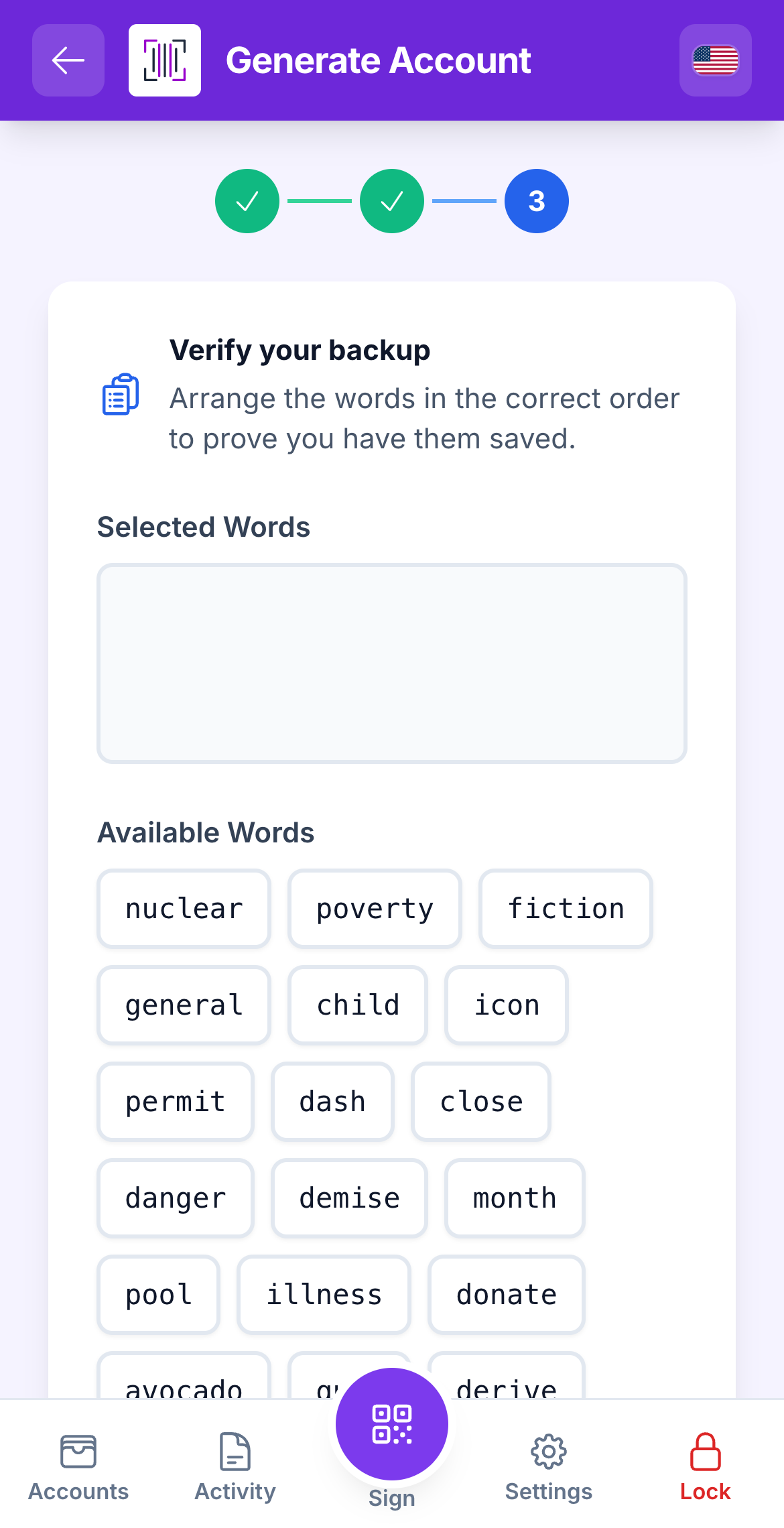
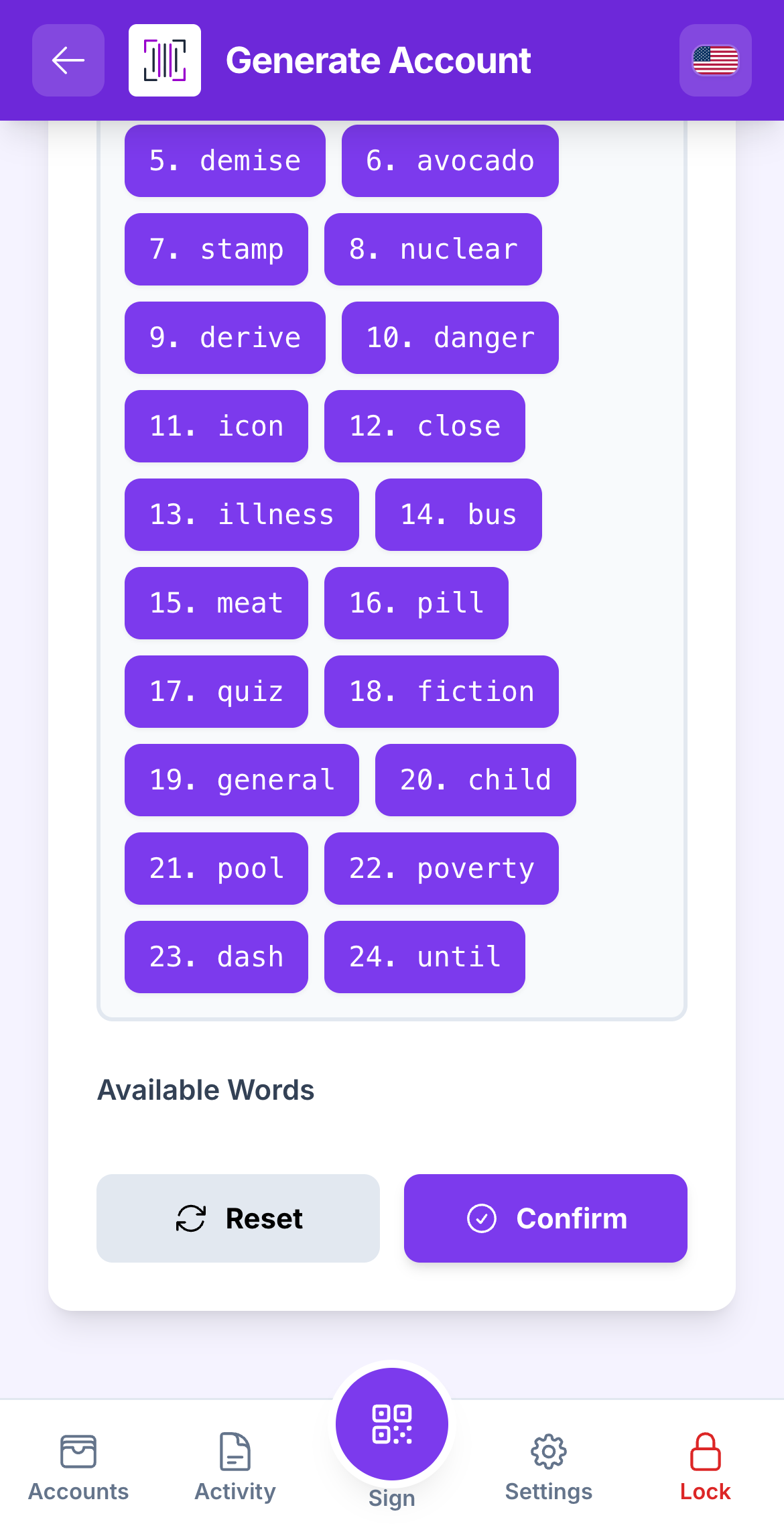
Step 3, **Verify**, shows your words shuffled. Tap them in the right order, reading from your paper. **Reset** clears your selection if you make a mistake.

<figure><img src="https://3674012151-files.gitbook.io/~/files/v0/b/gitbook-x-prod.appspot.com/o/spaces%2FT2jyfPJ4rcVavAvTU9nL%2Fuploads%2Fgit-blob-97e154bec7b0443d8545fa7b35715738e84d757c%2F05-step-verify.png?alt=media" alt="step verify"><figcaption><p>Prove you have the phrase by rebuilding it from your paper.</p></figcaption></figure>
{% endstep %}

{% step %}

### Confirm

When all the words are in place, tap **Confirm**. If the order is wrong, the Vault says **Incorrect order! Please try again.** and lets you retry.

<figure><img src="https://3674012151-files.gitbook.io/~/files/v0/b/gitbook-x-prod.appspot.com/o/spaces%2FT2jyfPJ4rcVavAvTU9nL%2Fuploads%2Fgit-blob-b85b4131bf2de8f7265d34b75650d2a1b79aa19b%2F06-verify-pick-words.png?alt=media" alt="verify pick words"><figcaption><p>All words placed. Confirm.</p></figcaption></figure>
{% endstep %}

{% step %}

### Enter your master password

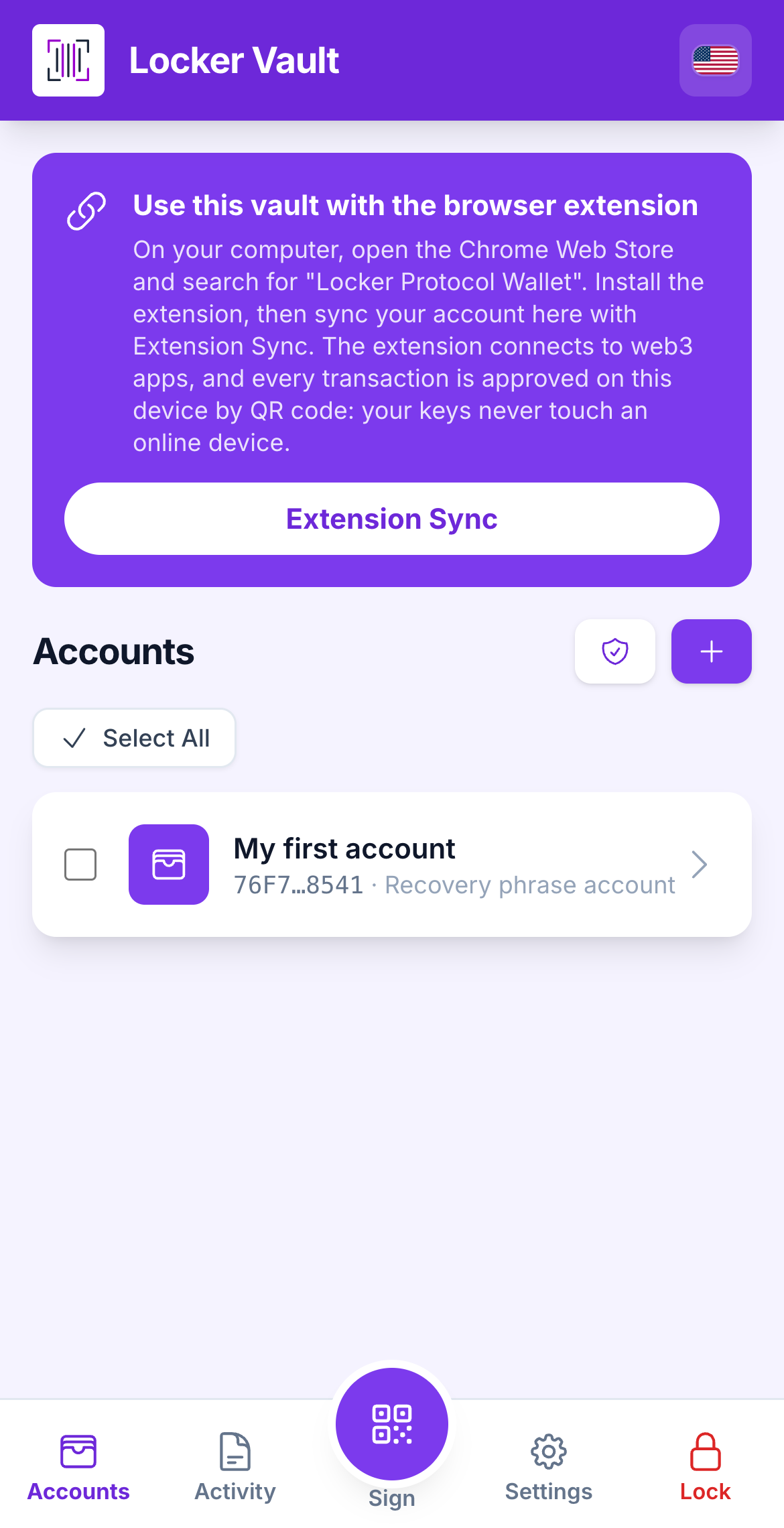
The Vault asks for your master password to encrypt and save the new account. A green **Account created successfully!** appears, and the account shows up on the Accounts screen.

<figure><img src="https://3674012151-files.gitbook.io/~/files/v0/b/gitbook-x-prod.appspot.com/o/spaces%2FT2jyfPJ4rcVavAvTU9nL%2Fuploads%2Fgit-blob-05eb19916be87b5777059a231938e8c5317aa50c%2F02-vault-create-done.png?alt=media" alt="account created"><figcaption><p>Your new account, saved and encrypted on this device.</p></figcaption></figure>
{% endstep %}
{% endstepper %}

{% hint style="info" %}
**What you see when it worked:** a new card on the Accounts screen with the badge *Recovery phrase account*. Open it to see its addresses on every chain.
{% endhint %}

{% hint style="warning" %}
**If something goes wrong**

* *"Back up later":* the Vault lets you skip the backup, but please do not. Without the words, losing the device means losing the account.
* *Incorrect order:* read your paper again slowly. If the paper is wrong, go **Back** to the Backup step and rewrite it before continuing.
* *You lost the paper later:* open the account and tap **Show secret phrase** (password required), then write it again.
  {% endhint %}

## Learn more

* [Your addresses](/vault/your-addresses.md)
* [Sync with the browser extension](/vault/sync-with-the-extension.md)
* [Export a paper / QR backup](/vault/export-a-qr-backup.md) for a second copy.


---

# Agent Instructions
This documentation is published with GitBook. GitBook is the documentation platform designed so that both humans and AI agents can read, navigate, and reason over technical content effectively. Learn more at gitbook.com.

## Querying This Documentation
If you need additional information that is not directly available in this page, you can query the documentation dynamically by asking a question.

Perform an HTTP GET request on the current page URL with the `ask` query parameter, and the optional `goal` query parameter:

```
GET https://doc.lockerprotocol.com/vault/add-an-account/create-a-new-account.md?ask=<question>&goal=<endgoal>
```

`ask` is the immediate question: it should be specific, self-contained, and written in natural language.
`goal` is optional and describes the broader end goal you are ultimately trying to accomplish on behalf of the user. GitBook uses it to tailor the answer towards what is most useful for that goal.

The response will contain a direct answer to the question and relevant excerpts and sources from the documentation.

Use this mechanism when the answer is not explicitly present in the current page, you need clarification or additional context, or you want to retrieve related documentation sections.