> For the complete documentation index, see [llms.txt](https://doc.lockerprotocol.com/llms.txt). Markdown versions of documentation pages are available by appending `.md` to page URLs; this page is available as [Markdown](https://doc.lockerprotocol.com/start-here/your-first-signature.md).

# Your first signature (zero-stakes tutorial)

Practice the QR loop once with nothing at stake, so the real thing feels familiar.

The extension has a built-in practice run. It asks the Vault to sign a message that does nothing and moves nothing. You get to try the whole QR loop without any risk.

## What you need

* The extension connected to your Vault (see [Set up in 3 steps](/start-here/set-up-in-3-steps.md)).
* Your Vault, unlocked.

{% stepper %}
{% step %}

### Click "Try it" on the tutorial banner

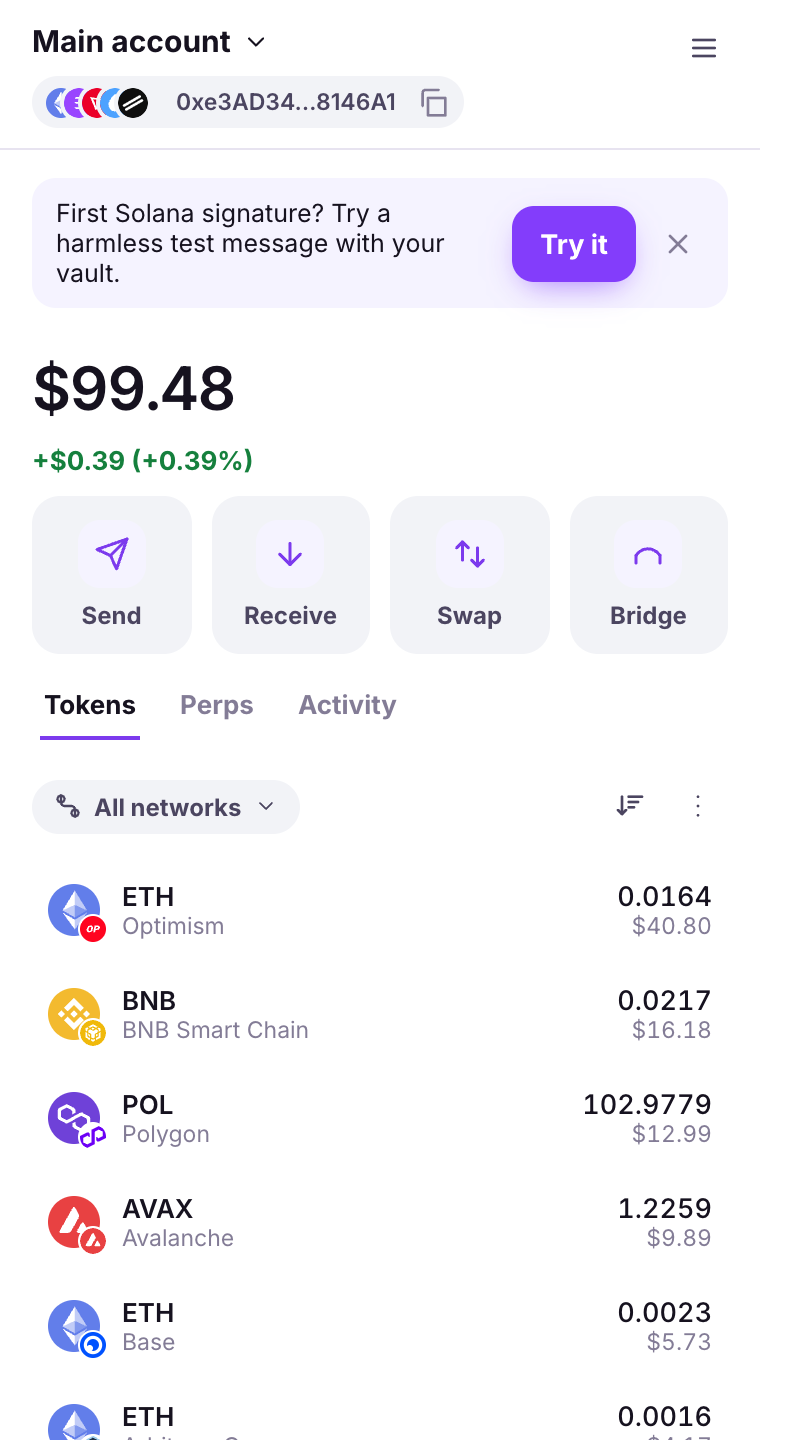
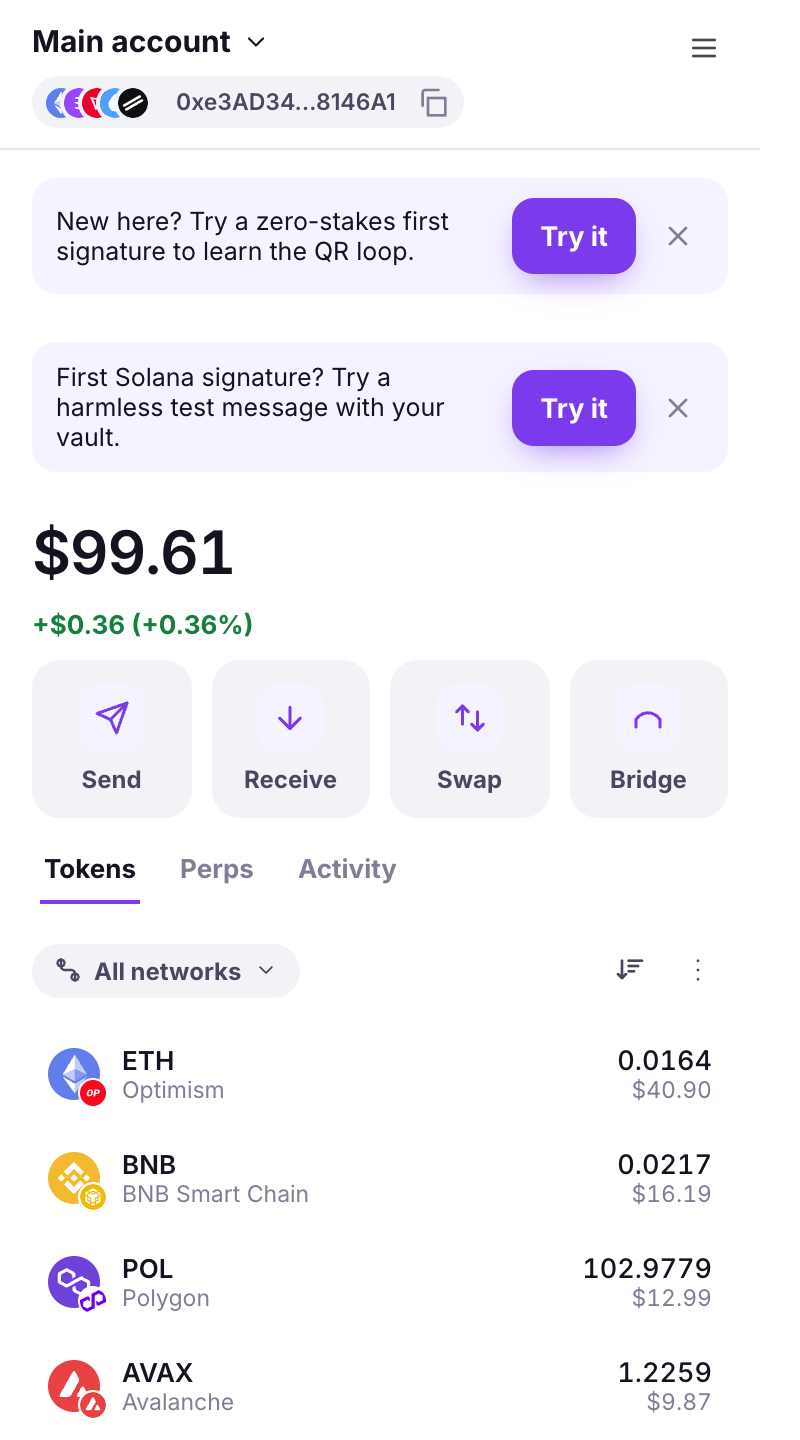
On the extension's home screen, a banner says *New here? Try a zero-stakes first signature to learn the QR loop.* Click **Try it**.

<figure><img src="https://3674012151-files.gitbook.io/~/files/v0/b/gitbook-x-prod.appspot.com/o/spaces%2FT2jyfPJ4rcVavAvTU9nL%2Fuploads%2Fgit-blob-605da1d08a2dd78f929fda1d46d293cd196f4102%2F01-home.png?alt=media" alt="tutorial banner"><figcaption><p>The tutorial banner on the home screen.</p></figcaption></figure>
{% endstep %}

{% step %}

### Read the practice request

The extension shows what it is about to ask the Vault: a harmless message to sign. Nothing here can spend anything.

<figure><img src="https://3674012151-files.gitbook.io/~/files/v0/b/gitbook-x-prod.appspot.com/o/spaces%2FT2jyfPJ4rcVavAvTU9nL%2Fuploads%2Fgit-blob-0806f086a1fe41f857a09a4bcd78d29131e50669%2F03-tutorial-qr.png?alt=media" alt="tutorial request"><figcaption><p>The practice request. It is only a message.</p></figcaption></figure>
{% endstep %}

{% step %}

### Show the animated QR to the Vault

The extension displays a moving QR code. On the Vault, tap the round **Sign** button: the camera opens. Point it at your screen. Keep it there until the Vault says the code is fully read.

<figure><img src="https://3674012151-files.gitbook.io/~/files/v0/b/gitbook-x-prod.appspot.com/o/spaces%2FT2jyfPJ4rcVavAvTU9nL%2Fuploads%2Fgit-blob-0806f086a1fe41f857a09a4bcd78d29131e50669%2F03-tutorial-qr.png?alt=media" alt="tutorial qr"><figcaption><p>The extension's animated QR. The frame counter shows progress.</p></figcaption></figure>
{% endstep %}

{% step %}

### Check the Vault's review screen, then Sign

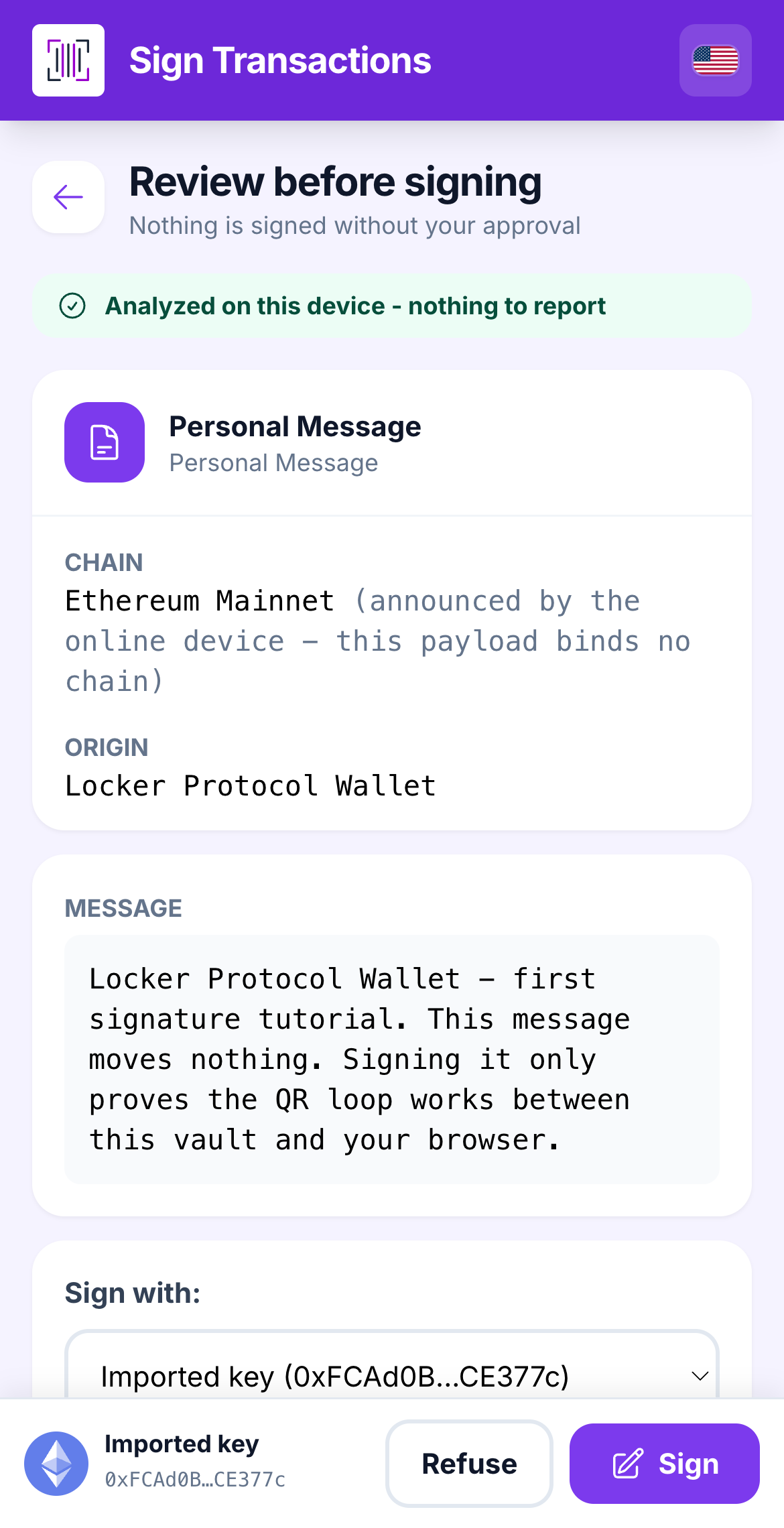
The Vault shows **Review before signing**, with the message text and the account. Tap **Sign**, and enter your password if asked.

<figure><img src="https://3674012151-files.gitbook.io/~/files/v0/b/gitbook-x-prod.appspot.com/o/spaces%2FT2jyfPJ4rcVavAvTU9nL%2Fuploads%2Fgit-blob-6dd751b5ac23e746303e849e54e557102153990f%2F02-message-review.png?alt=media" alt="vault tutorial review"><figcaption><p>The Vault's review screen for the practice message.</p></figcaption></figure>
{% endstep %}

{% step %}

### Show the Vault's signed QR to the webcam

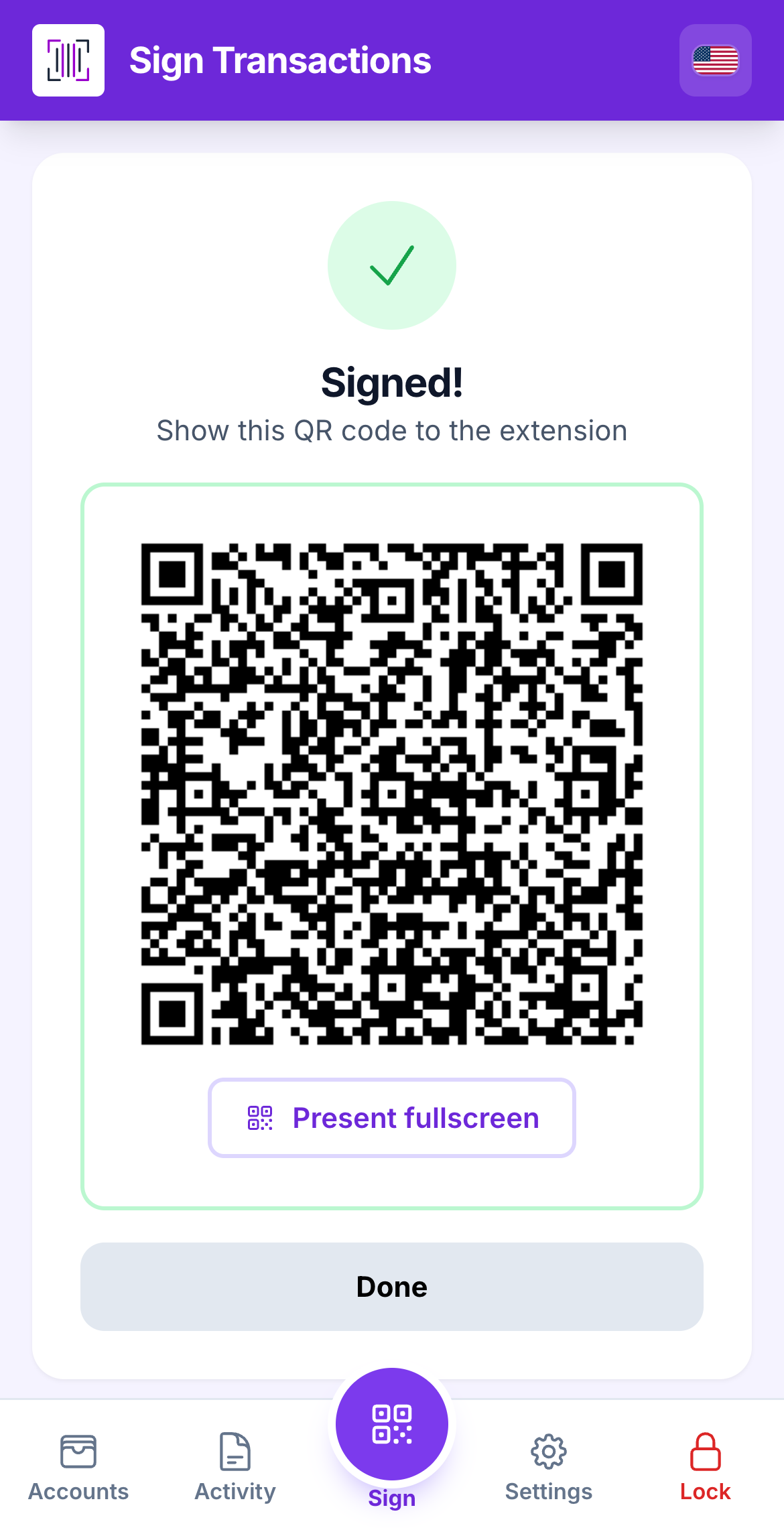
The Vault now displays **Signed! Show the QR to the extension.** Hold it up to your computer's camera.

<figure><img src="https://3674012151-files.gitbook.io/~/files/v0/b/gitbook-x-prod.appspot.com/o/spaces%2FT2jyfPJ4rcVavAvTU9nL%2Fuploads%2Fgit-blob-21baf0198aa309545394eacee89ce0b47a80e7be%2F07-signed-qr.png?alt=media" alt="vault signed qr"><figcaption><p>The signed answer, as a QR on the Vault.</p></figcaption></figure>
{% endstep %}

{% step %}

### Done

The extension confirms it received a valid signature. You have just completed a full QR loop. Real transactions work exactly the same way, with a real review screen in the middle.
{% endstep %}
{% endstepper %}

{% hint style="info" %}
**What you learned:** request on the computer → read on the Vault → sign on the Vault → answer back to the computer. Every real signature follows these four moves.
{% endhint %}

{% hint style="warning" %}
**If something goes wrong**

* *The Vault says "Address not recognized":* the extension is watching an account that is not on this Vault. Re-sync from the right Vault.
* *The extension says "That QR does not answer this request":* you showed an old signature. Do the loop again from the start.
* *The camera is blurred on purpose:* that is normal. Both apps blur the preview so nobody can read a code over your shoulder. Scanning still works.
  {% endhint %}

## Learn more

* [Sign a transaction on the Vault](/vault/sign-a-transaction.md)
* [Sign what a dApp asks](/browser-extension/sign-what-a-dapp-asks.md)


---

# Agent Instructions
This documentation is published with GitBook. GitBook is the documentation platform designed so that both humans and AI agents can read, navigate, and reason over technical content effectively. Learn more at gitbook.com.

## Querying This Documentation
If you need additional information that is not directly available in this page, you can query the documentation dynamically by asking a question.

Perform an HTTP GET request on the current page URL with the `ask` query parameter, and the optional `goal` query parameter:

```
GET https://doc.lockerprotocol.com/start-here/your-first-signature.md?ask=<question>&goal=<endgoal>
```

`ask` is the immediate question: it should be specific, self-contained, and written in natural language.
`goal` is optional and describes the broader end goal you are ultimately trying to accomplish on behalf of the user. GitBook uses it to tailor the answer towards what is most useful for that goal.

The response will contain a direct answer to the question and relevant excerpts and sources from the documentation.

Use this mechanism when the answer is not explicitly present in the current page, you need clarification or additional context, or you want to retrieve related documentation sections.