> For the complete documentation index, see [llms.txt](https://doc.lockerprotocol.com/llms.txt). Markdown versions of documentation pages are available by appending `.md` to page URLs; this page is available as [Markdown](https://doc.lockerprotocol.com/start-here/how-it-works.md).

# How it works in 60 seconds

Your computer shows a code, your Vault reads it and answers with another code. That is a signature.

Signing something with Locker Protocol is like passing notes through a window. Nobody ever hands over the key. Here is the whole trick, in four pictures.

{% stepper %}
{% step %}

### The extension shows an animated QR code

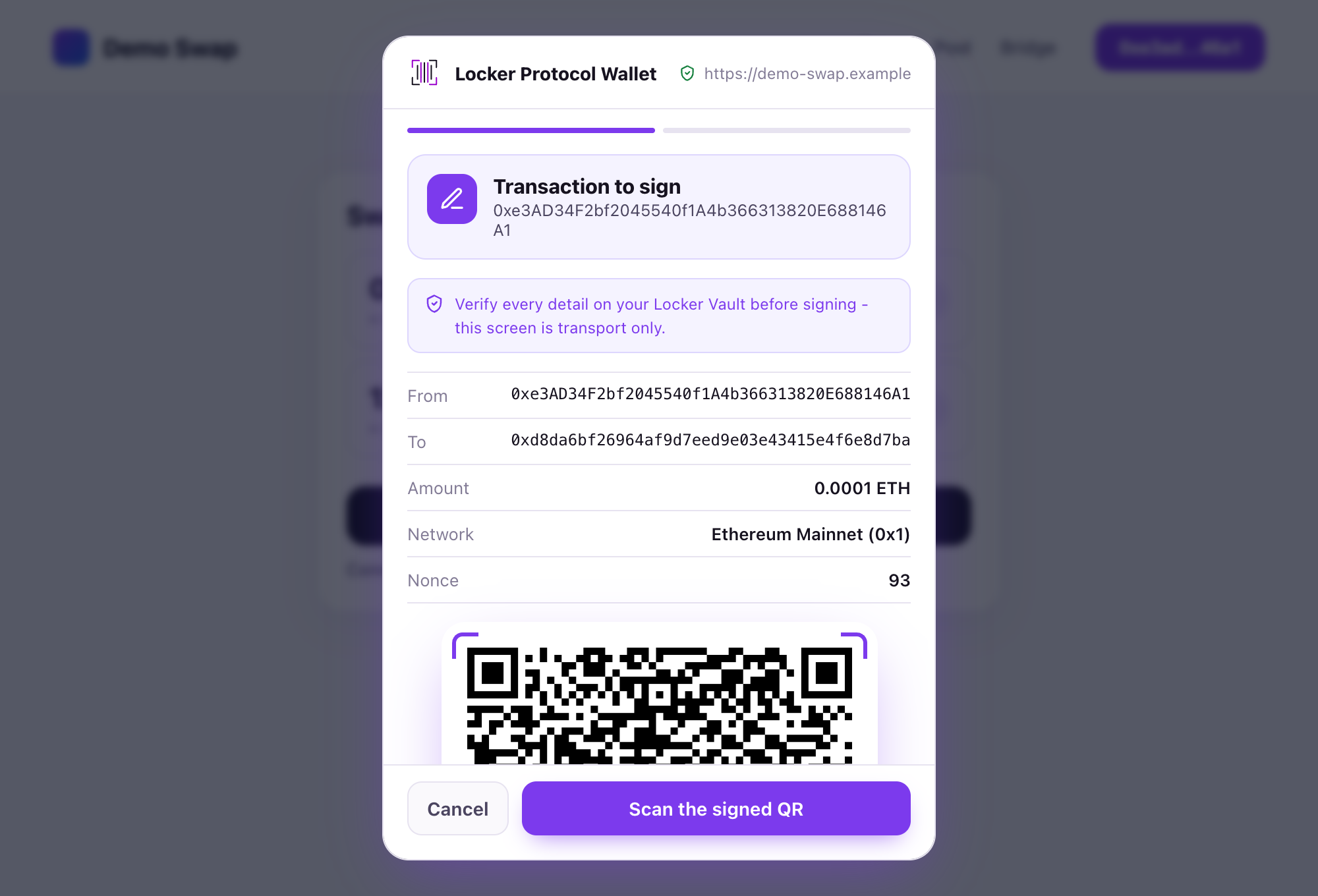
You click **Send** (or a website asks you to sign something). The browser extension turns that request into a QR code that flickers between several frames. It is a request, not a signature: at this point nothing has happened yet.

<figure><img src="https://3674012151-files.gitbook.io/~/files/v0/b/gitbook-x-prod.appspot.com/o/spaces%2FT2jyfPJ4rcVavAvTU9nL%2Fuploads%2Fgit-blob-654e55eabc14ae98fee80dbf76cf3f40f2540f81%2F01-extension-shows-qr.png?alt=media" alt="extension shows qr"><figcaption><p>The extension shows what it wants signed, as a moving QR code.</p></figcaption></figure>
{% endstep %}

{% step %}

### The Vault reads it and shows you what it means

You point the Vault's camera at your screen. The Vault decodes the request and displays it in plain words: how much, to whom, on which network. **Read this screen.** It is the only one you should trust.

<figure><img src="https://3674012151-files.gitbook.io/~/files/v0/b/gitbook-x-prod.appspot.com/o/spaces%2FT2jyfPJ4rcVavAvTU9nL%2Fuploads%2Fgit-blob-fdf95bb044ce7d431ffe5ba94de0052b858948fd%2F02-vault-scans.png?alt=media" alt="vault scans"><figcaption><p>The Vault shows the request in its own words, before anything is signed.</p></figcaption></figure>
{% endstep %}

{% step %}

### You tap Sign, the Vault shows a new QR

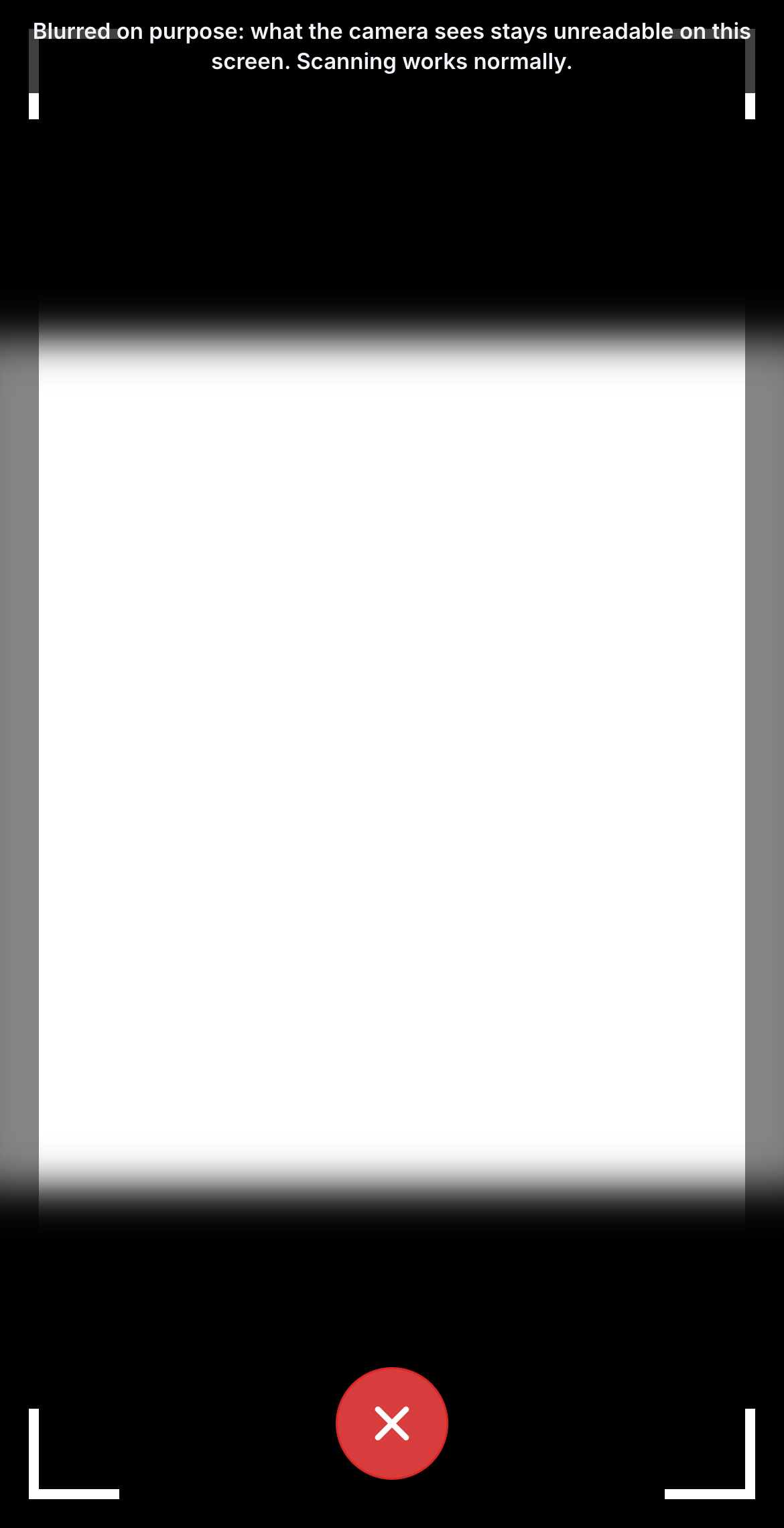
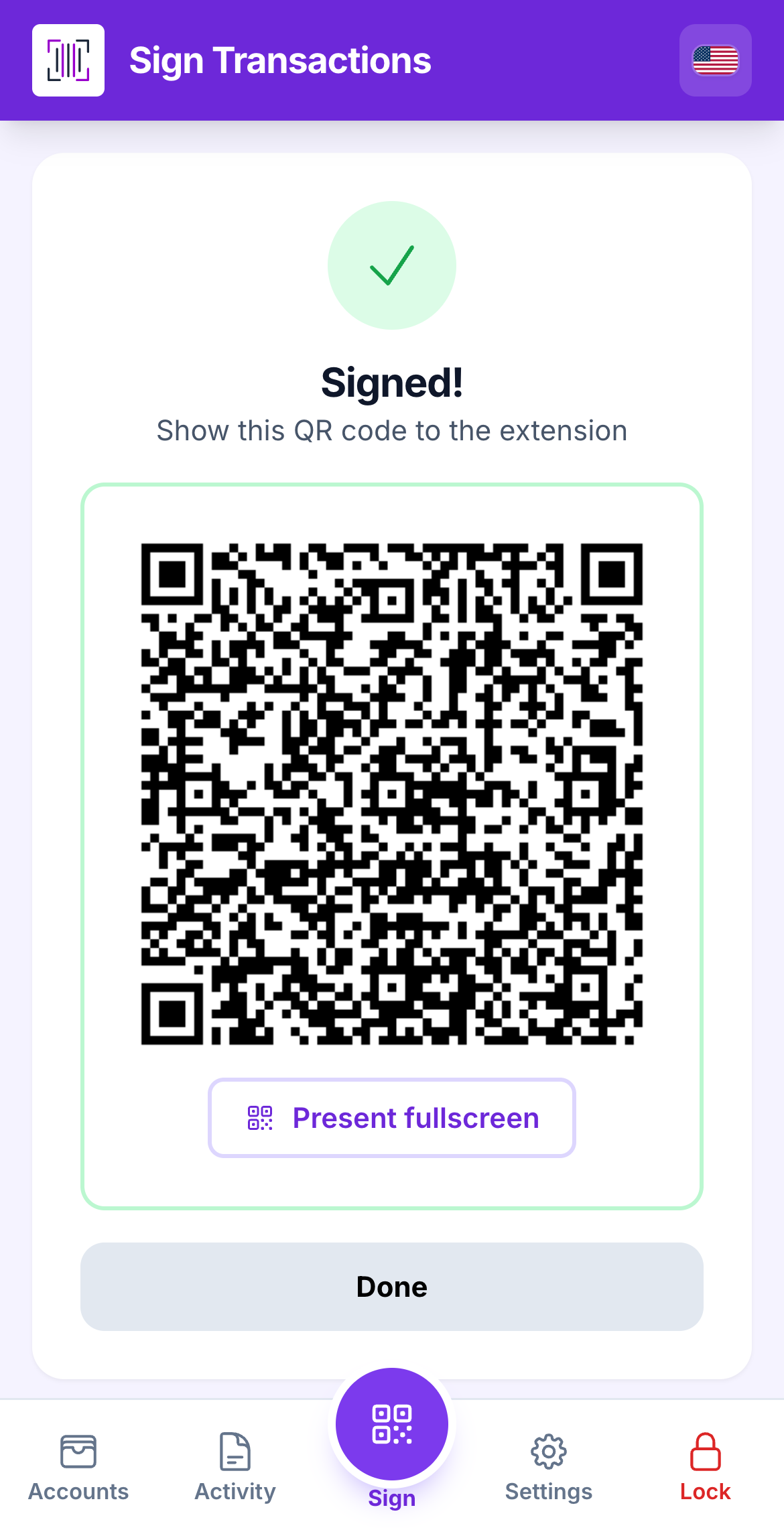
If everything looks right, you tap **Sign**. The Vault signs with the key that never left it, and shows the *signed* result as a QR code on its own screen.

<figure><img src="https://3674012151-files.gitbook.io/~/files/v0/b/gitbook-x-prod.appspot.com/o/spaces%2FT2jyfPJ4rcVavAvTU9nL%2Fuploads%2Fgit-blob-21baf0198aa309545394eacee89ce0b47a80e7be%2F07-signed-qr.png?alt=media" alt="vault shows signed qr"><figcaption><p>The signature, as a QR code. Still no key on the screen, only the signature.</p></figcaption></figure>
{% endstep %}

{% step %}

### The extension scans it back and sends it

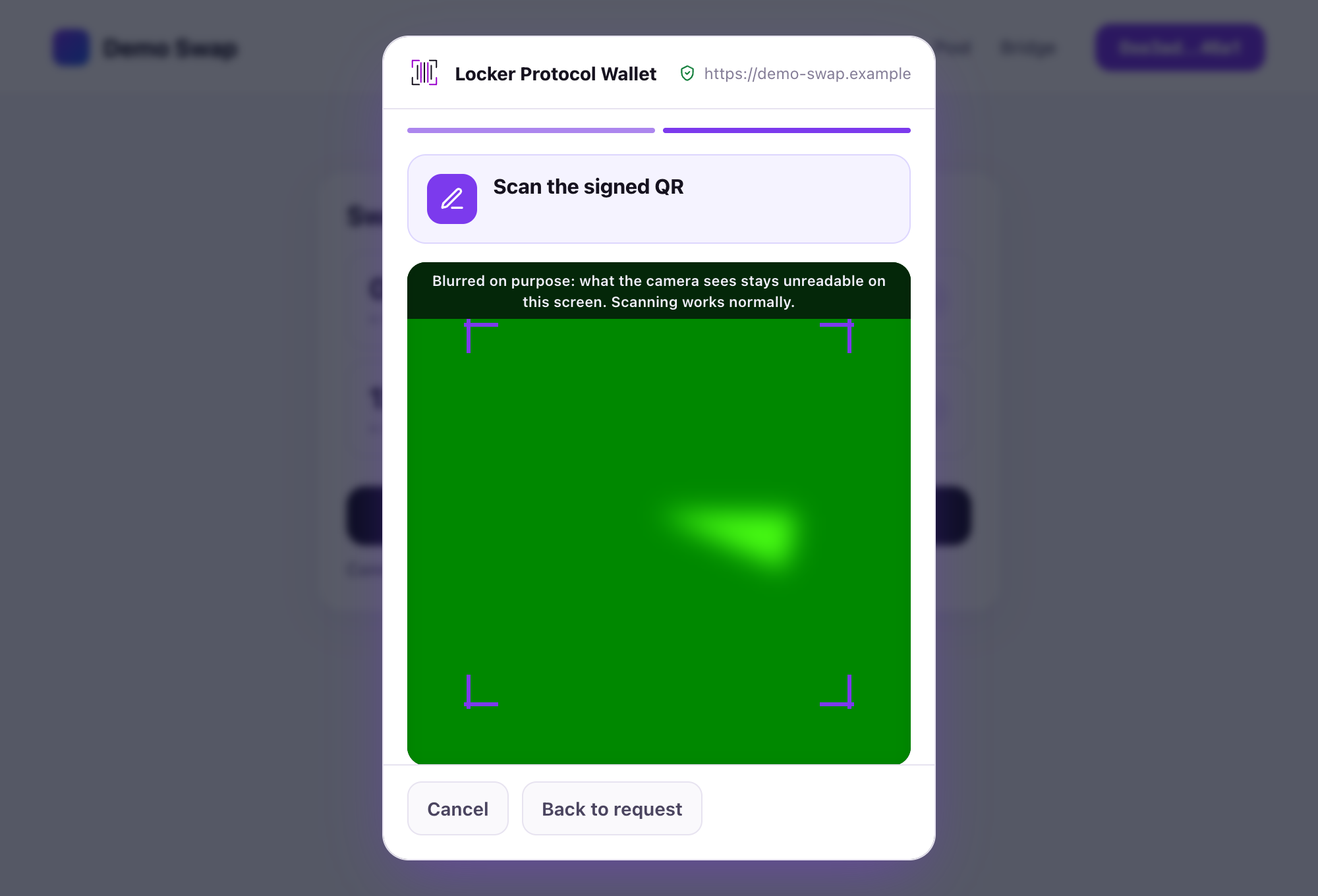
You hold the Vault up to your computer's camera. The extension reads the signed QR and sends the transaction to the network. Done.

<figure><img src="https://3674012151-files.gitbook.io/~/files/v0/b/gitbook-x-prod.appspot.com/o/spaces%2FT2jyfPJ4rcVavAvTU9nL%2Fuploads%2Fgit-blob-b81ed480a552bd30bc0cd325784bbdab0cc6391e%2F04-extension-scans-back.png?alt=media" alt="extension scans back"><figcaption><p>The extension reads the signature and broadcasts the transaction.</p></figcaption></figure>
{% endstep %}
{% endstepper %}

{% hint style="info" %}
**Why this is safe:** the Vault has no internet. The only things that ever cross between the two devices are pictures of QR codes: a *request* going one way and a *signature* coming back. Your secret key is never inside either of them.
{% endhint %}

{% hint style="warning" %}
**The golden rule:** what the *Vault* shows is the truth. If the Vault's screen and the computer's screen disagree, tap **Refuse** on the Vault.
{% endhint %}

## Learn more

* [Set up in 3 steps](/start-here/set-up-in-3-steps.md)
* [Sign a transaction on the Vault](/vault/sign-a-transaction.md)
* [Security model](/reference/security-model.md)


---

# Agent Instructions
This documentation is published with GitBook. GitBook is the documentation platform designed so that both humans and AI agents can read, navigate, and reason over technical content effectively. Learn more at gitbook.com.

## Querying This Documentation
If you need additional information that is not directly available in this page, you can query the documentation dynamically by asking a question.

Perform an HTTP GET request on the current page URL with the `ask` query parameter, and the optional `goal` query parameter:

```
GET https://doc.lockerprotocol.com/start-here/how-it-works.md?ask=<question>&goal=<endgoal>
```

`ask` is the immediate question: it should be specific, self-contained, and written in natural language.
`goal` is optional and describes the broader end goal you are ultimately trying to accomplish on behalf of the user. GitBook uses it to tailor the answer towards what is most useful for that goal.

The response will contain a direct answer to the question and relevant excerpts and sources from the documentation.

Use this mechanism when the answer is not explicitly present in the current page, you need clarification or additional context, or you want to retrieve related documentation sections.