> For the complete documentation index, see [llms.txt](https://doc.lockerprotocol.com/llms.txt). Markdown versions of documentation pages are available by appending `.md` to page URLs; this page is available as [Markdown](https://doc.lockerprotocol.com/browser-extension/accounts.md).

# Accounts

One row per account from your Vault: switch, search, pin, hide, and see every address.

The extension keeps *watch-only* copies of your Vault accounts: names and addresses, never keys. This screen is the list of them, and behind each row a menu opens everything you can do with one account.

## What you need

* Your Vault, for adding an account or re-syncing one.

## The list

{% stepper %}
{% step %}

### Open Accounts

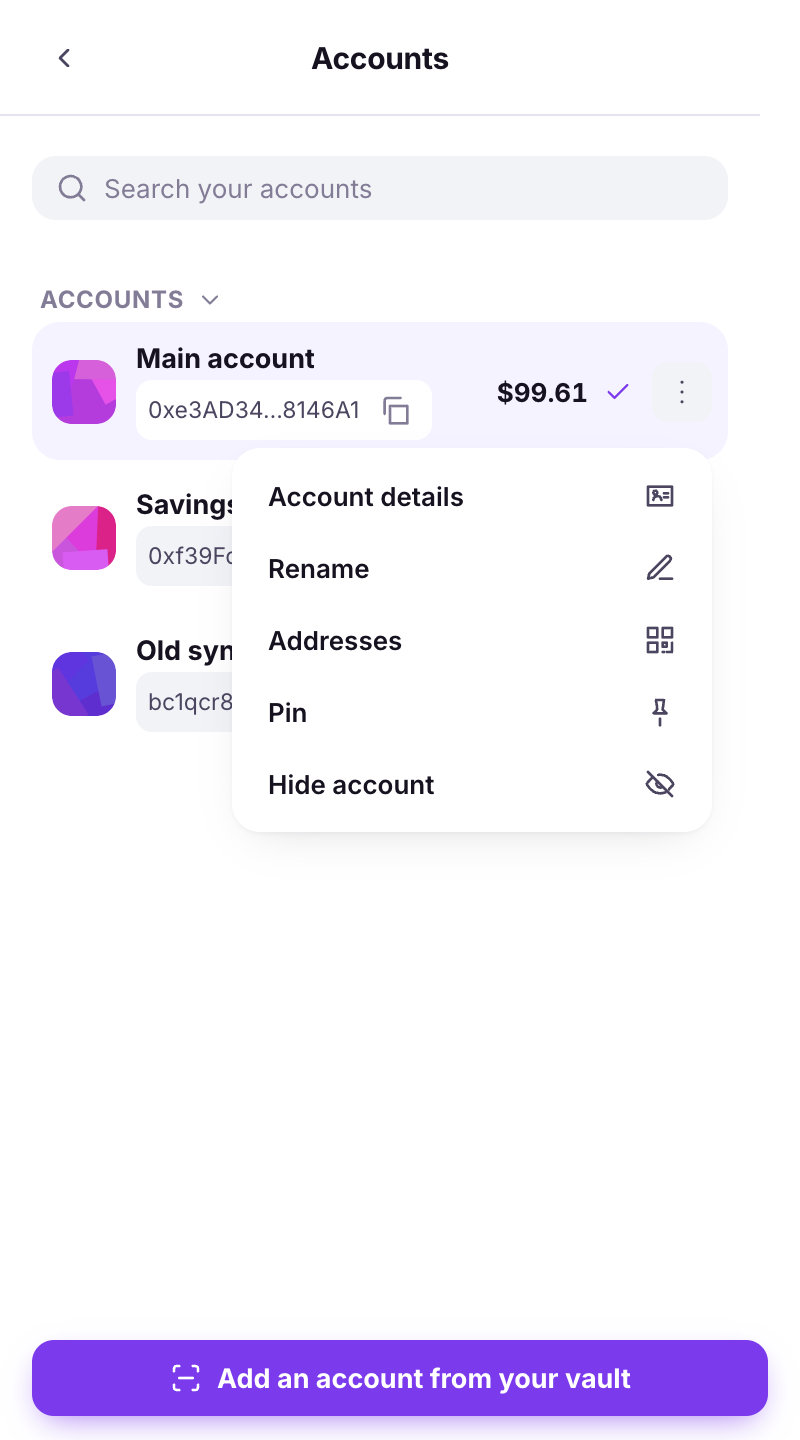
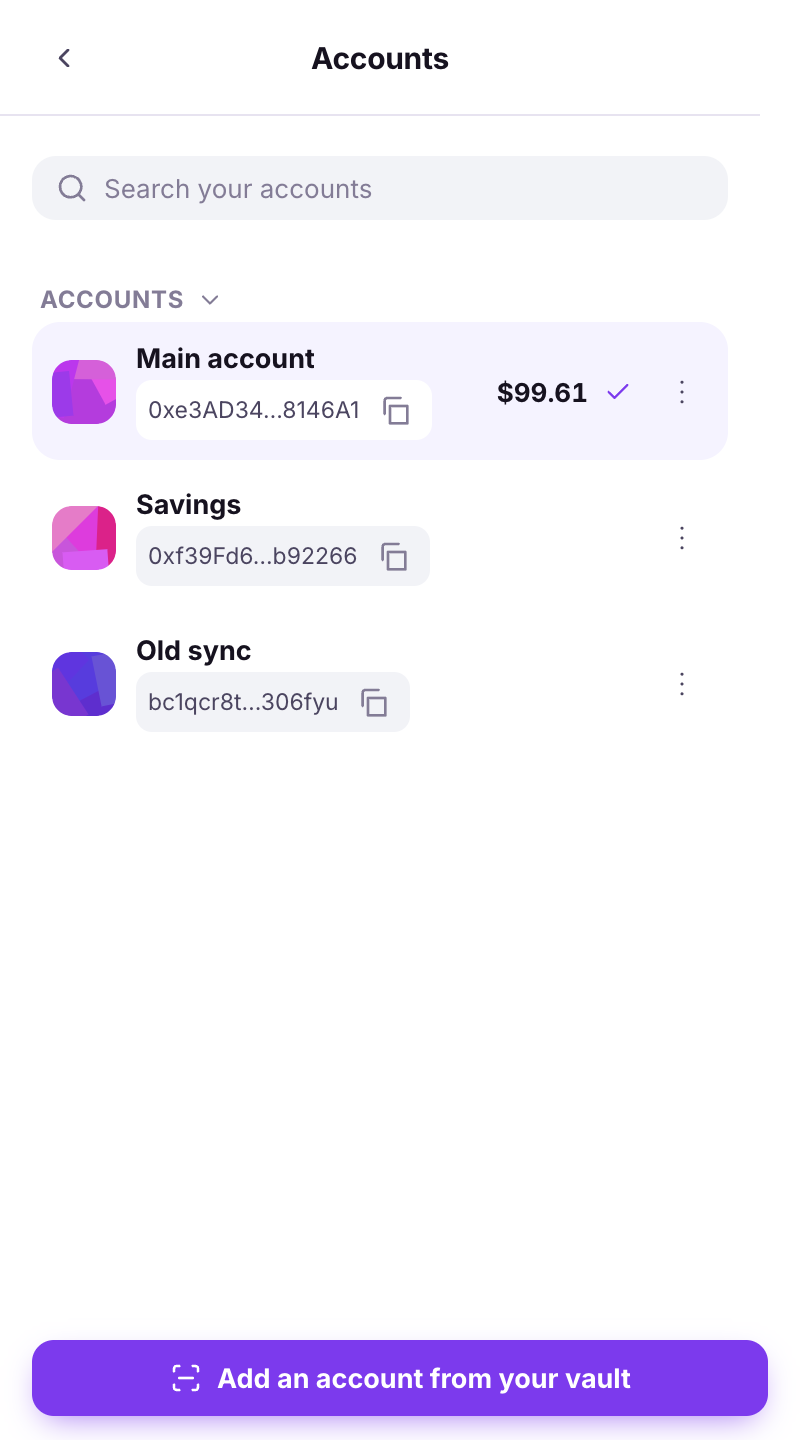
Tap the account name at the top of Home, or **Menu → Accounts**. Each row shows the avatar, the name, the default address with a copy button, and the last known **USD total** of that account. The row with a check is the active one; tap another row to switch.

<figure><img src="https://3674012151-files.gitbook.io/~/files/v0/b/gitbook-x-prod.appspot.com/o/spaces%2FT2jyfPJ4rcVavAvTU9nL%2Fuploads%2Fgit-blob-aa2f94571d1780b85085970feca1fc95a2597b24%2F01-accounts-list.png?alt=media" alt="accounts list"><figcaption><p>One row per account, the active one checked.</p></figcaption></figure>
{% endstep %}

{% step %}

### Search, pin, hide

**Search your accounts** filters the list by name or address. Accounts you **Pin** rise into a **Pinned** section at the top; accounts you **Hide** drop into a collapsed **Hidden accounts** section at the bottom (hiding changes nothing on the blockchain, it only tidies this list).
{% endstep %}

{% step %}

### The kebab menu

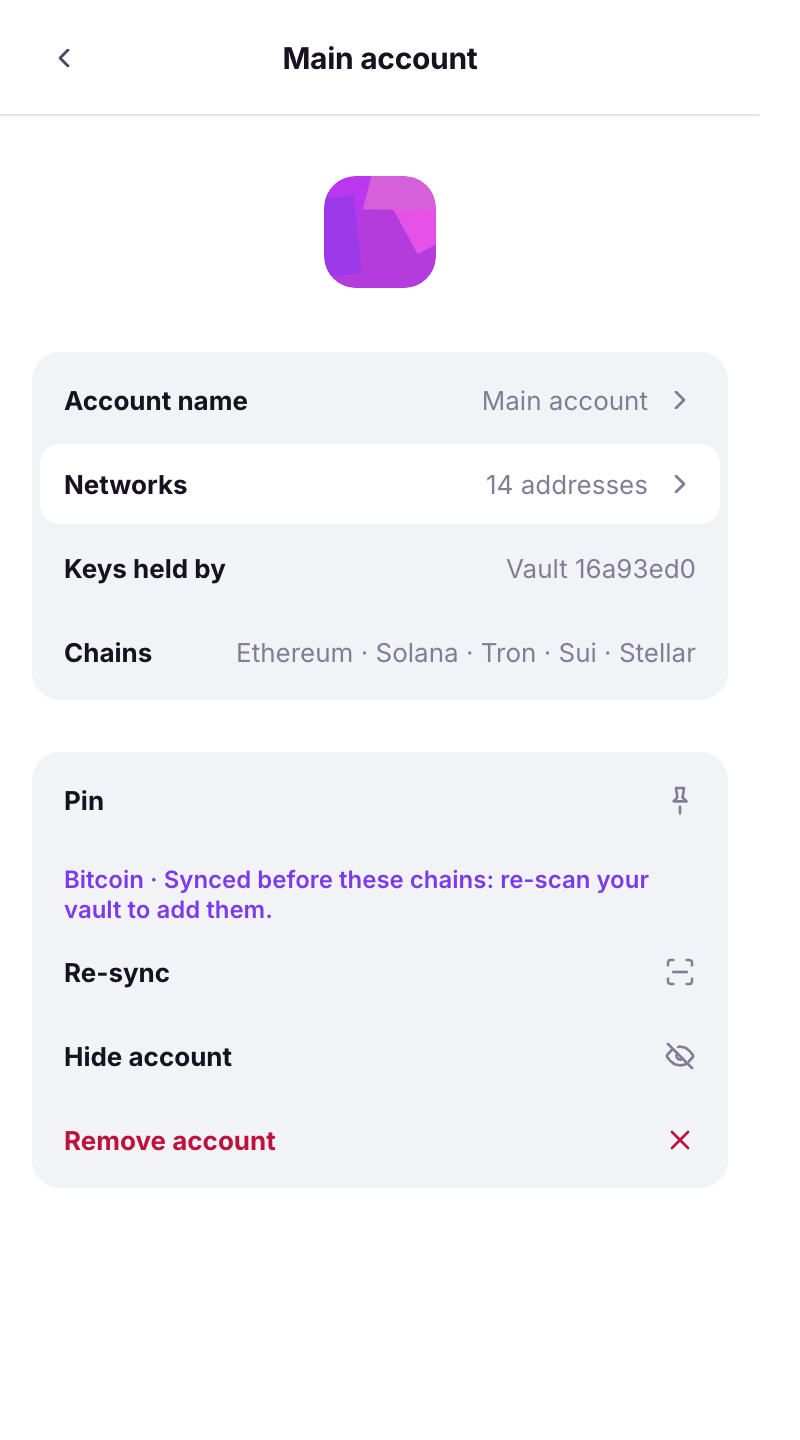
The **⋮** button on a row opens **Account actions**: **Account details**, **Rename**, **Addresses**, **Pin** / **Unpin**, **Hide account** / **Show account**.

<figure><img src="https://3674012151-files.gitbook.io/~/files/v0/b/gitbook-x-prod.appspot.com/o/spaces%2FT2jyfPJ4rcVavAvTU9nL%2Fuploads%2Fgit-blob-5501a86c557be088aad04aa26d64d13ef20b95b4%2F02-kebab-menu.png?alt=media" alt="kebab menu"><figcaption><p>Every action of one account lives behind its ⋮ menu.</p></figcaption></figure>
{% endstep %}
{% endstepper %}

## Account details

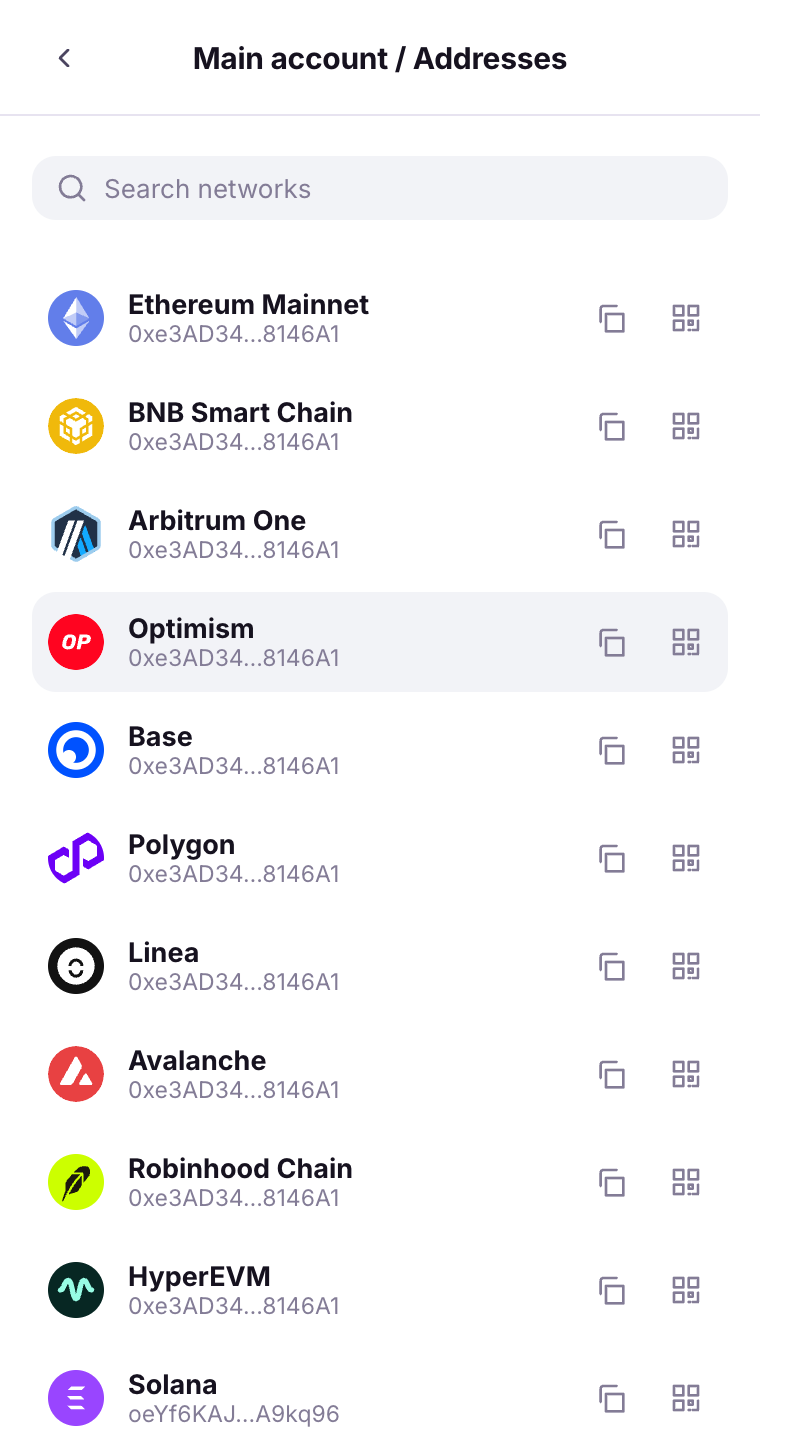
**Account details** is one row per fact, then one row per action.

<figure><img src="https://3674012151-files.gitbook.io/~/files/v0/b/gitbook-x-prod.appspot.com/o/spaces%2FT2jyfPJ4rcVavAvTU9nL%2Fuploads%2Fgit-blob-6626f159abbc064697f675050386b989ac4b6226%2F03-account-details.png?alt=media" alt="account details"><figcaption><p>Name, networks, the Vault it came from, and the actions.</p></figcaption></figure>

* **Account name** — tap to rename. The name lives in the extension only; your Vault keeps its own.
* **Networks** — *{n} addresses*; tap to open the [Addresses](#addresses) page.
* **Keys held by** — **Vault** with the fingerprint of the Vault this account was synced from, or **Imported address** for an address you typed in by hand to watch.
* **Chains** — the families this account carries. If it says *Synced before these chains: re-scan your vault to add them*, use **Re-sync**.
* **Pin** / **Hide account** — the same switches as the kebab menu.
* **Re-sync** — scan your Vault's sync QR again to bring in addresses the account did not have yet. Existing addresses never change.
* **Remove account** — *Remove {name} from this wallet? Its addresses, activity and site permissions leave with it. The keys stay on your vault: syncing it again brings the account back.*

{% hint style="info" %}
There is **no private key row and no recovery phrase** here, and there never will be: the keys never left your Vault. That is the whole product.
{% endhint %}

## Addresses

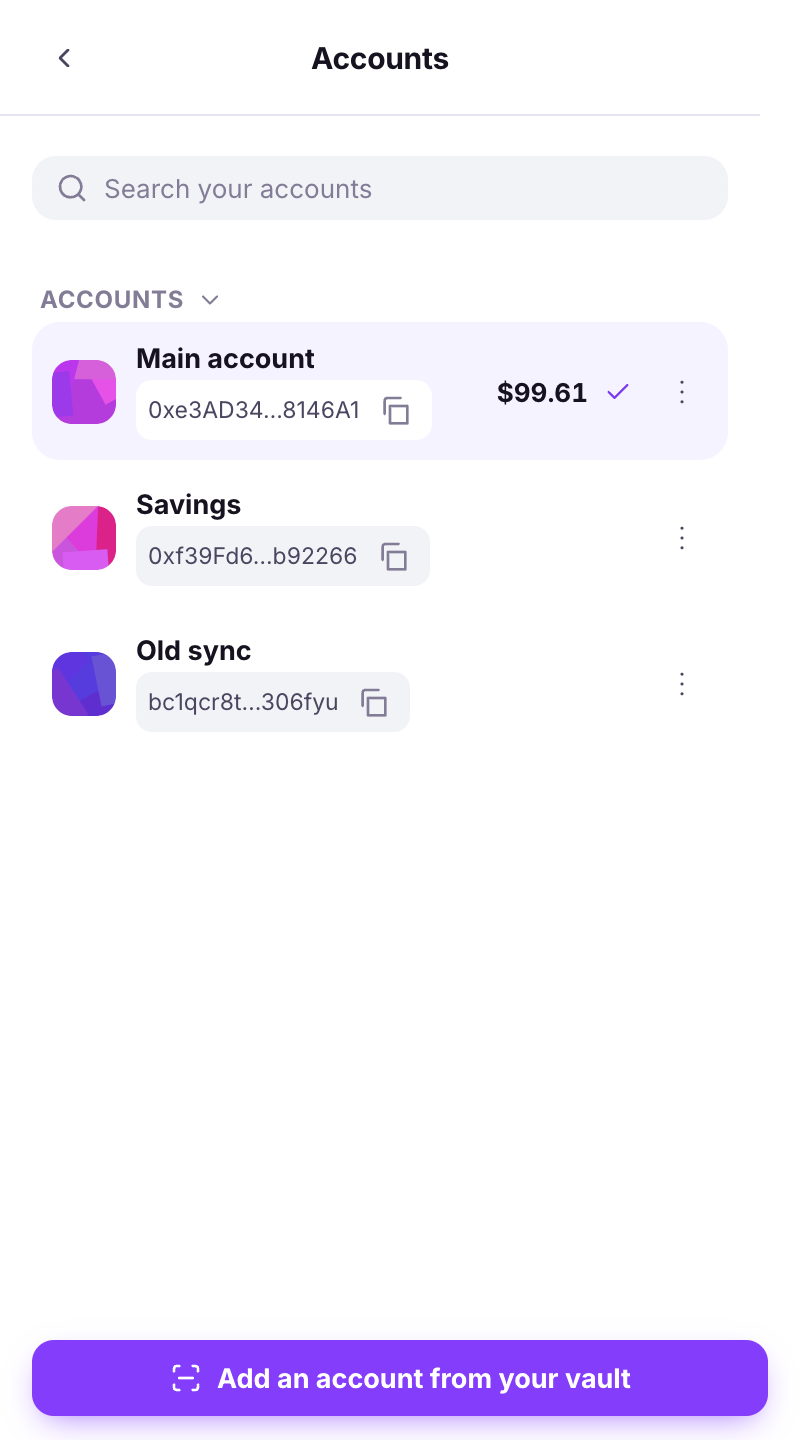
One row per **network**, not per family: your single Ethereum address is listed once for every EVM network in your roster, each with that network's mark, then Bitcoin (payment), Ordinals, Solana, Tron, Sui and Stellar.

<figure><img src="https://3674012151-files.gitbook.io/~/files/v0/b/gitbook-x-prod.appspot.com/o/spaces%2FT2jyfPJ4rcVavAvTU9nL%2Fuploads%2Fgit-blob-7aa6edc4cec8847af37ad9ff0e5de819a72f0330%2F04-addresses.png?alt=media" alt="addresses"><figcaption><p>The addresses of one account, network by network.</p></figcaption></figure>

**Search networks** filters the list (*No match* when nothing fits). Each row has a copy button and a QR button that shows the **Receive** code for that exact address.

## Add an account from your Vault

{% stepper %}
{% step %}

### Scan the Vault's sync QR

At the bottom of the list, **Add an account from your vault** opens the import page. **Scan QR** (*Point at your vault's sync QR*) reads your Vault's **Extension Sync** code; the wallet reports the chain families and the new addresses it imported.

Two other doors: **Paste the sync code** (a `ur:crypto-multi-accounts` string) and **Type an address** (any `0x` address to watch, useful for following an address you do not own).

<figure><img src="https://3674012151-files.gitbook.io/~/files/v0/b/gitbook-x-prod.appspot.com/o/spaces%2FT2jyfPJ4rcVavAvTU9nL%2Fuploads%2Fgit-blob-de6d307447688d6d85341fd154a7994072134990%2F05-add-from-vault.png?alt=media" alt="add from vault"><figcaption><p>Add an account: scan, paste or type.</p></figcaption></figure>
{% endstep %}
{% endstepper %}

{% hint style="warning" %}
**Wrong QR?** The Vault's account page also shows a **Bitcoin watch-only** QR meant for Sparrow or Nunchuk. If you scan that one here, the wallet refuses it by name (*This crypto-account is the Bitcoin watch-only export (meant for Sparrow/Nunchuk), not an EVM account. To add this vault, scan its multichain sync QR instead.*) and nothing is added. Go back to the Vault and tap **Extension Sync**.
{% endhint %}

{% hint style="warning" %}
**TEST badge.** On a development build, accounts marked **TEST** use *public* keys everyone knows. *Never send real funds to this address.* You will not see this on the store version.
{% endhint %}

## Learn more

* [Sync with the browser extension (Vault side)](/vault/sync-with-the-extension.md)
* [Receive](/browser-extension/receive.md)
* [Reset the extension](/browser-extension/reset-the-extension.md)


---

# Agent Instructions
This documentation is published with GitBook. GitBook is the documentation platform designed so that both humans and AI agents can read, navigate, and reason over technical content effectively. Learn more at gitbook.com.

## Querying This Documentation
If you need additional information that is not directly available in this page, you can query the documentation dynamically by asking a question.

Perform an HTTP GET request on the current page URL with the `ask` query parameter, and the optional `goal` query parameter:

```
GET https://doc.lockerprotocol.com/browser-extension/accounts.md?ask=<question>&goal=<endgoal>
```

`ask` is the immediate question: it should be specific, self-contained, and written in natural language.
`goal` is optional and describes the broader end goal you are ultimately trying to accomplish on behalf of the user. GitBook uses it to tailor the answer towards what is most useful for that goal.

The response will contain a direct answer to the question and relevant excerpts and sources from the documentation.

Use this mechanism when the answer is not explicitly present in the current page, you need clarification or additional context, or you want to retrieve related documentation sections.